SMO Manager App
SMO Manager App
SMO Manager is a smart and efficient Social Media Optimization platform designed to simplify content planning, task management, and collaboration between administrators and designers. The application helps teams organize client projects, manage content workflows, schedule social media posts, and track progress through a centralized dashboard.
Technology Used
-

PHP
-

mySQL
-

HTML
-

CSS
-

Javascript
-
Bootstrap

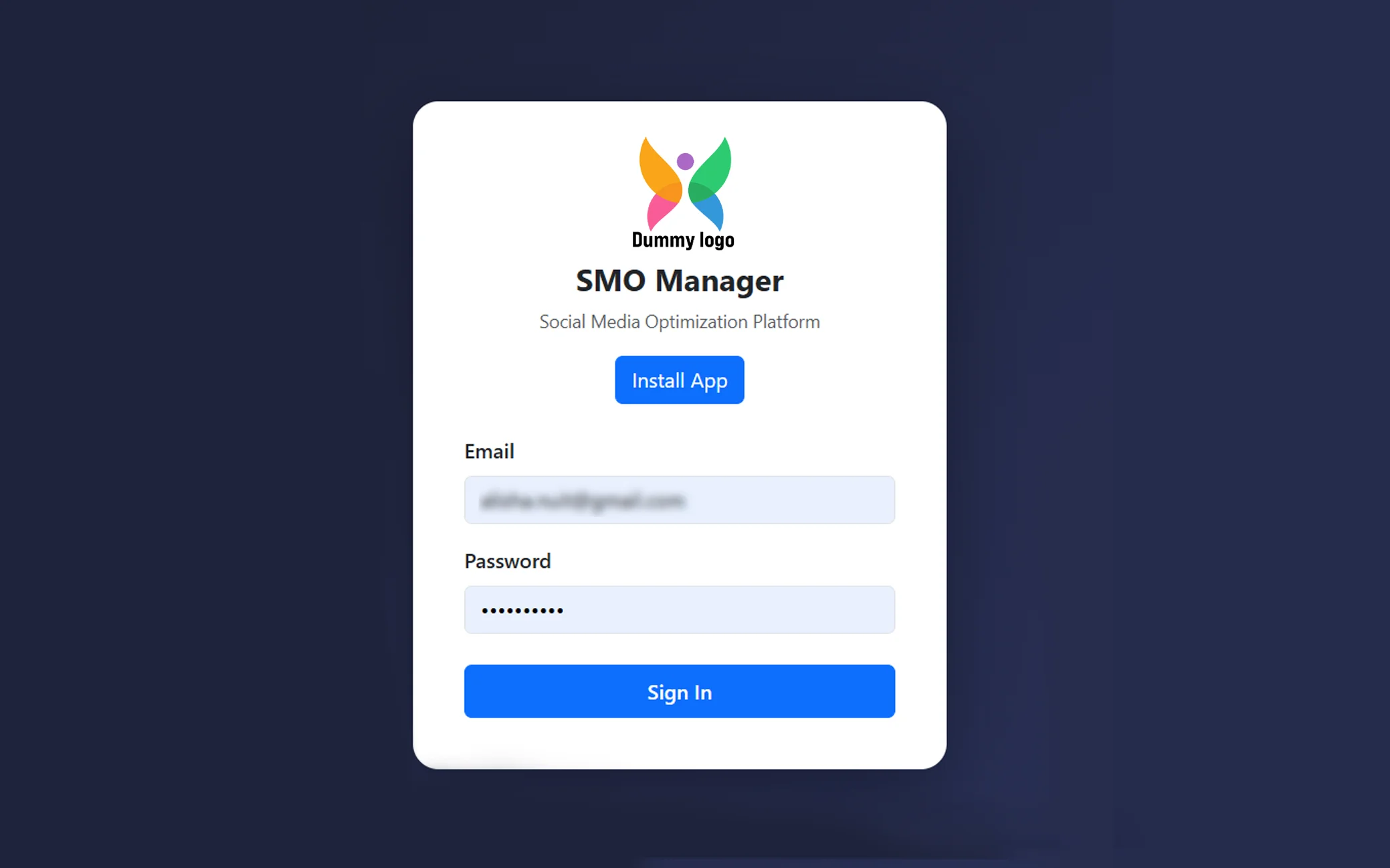
Secure Login
The application includes a secure login system that ensures only authorized users can access the platform. Users can log in using their registered email and password credentials. Role-based access control helps maintain data privacy and ensures admins and designers can access only the relevant modules and functionalities assigned to them.
Super Admin Dashboard
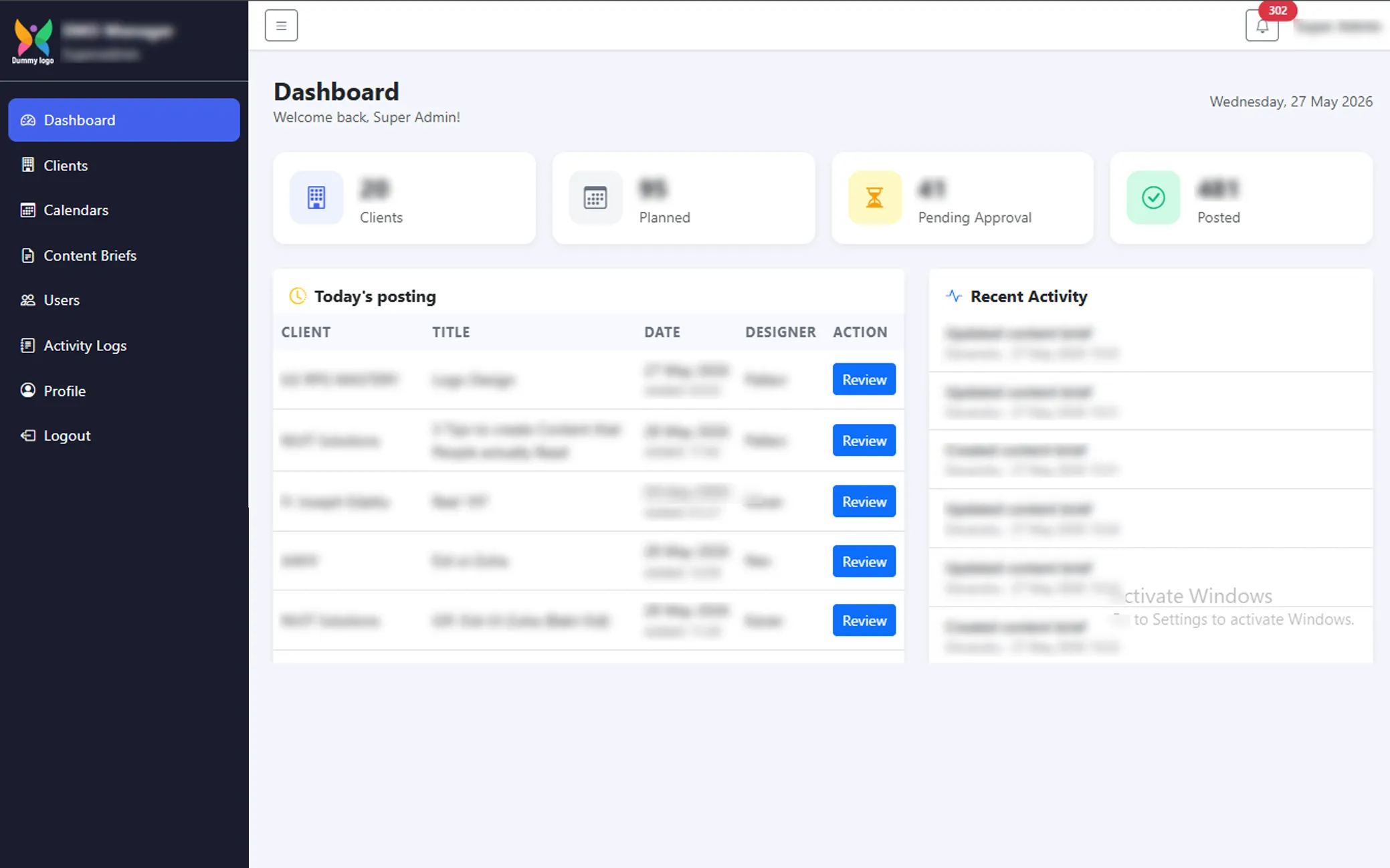
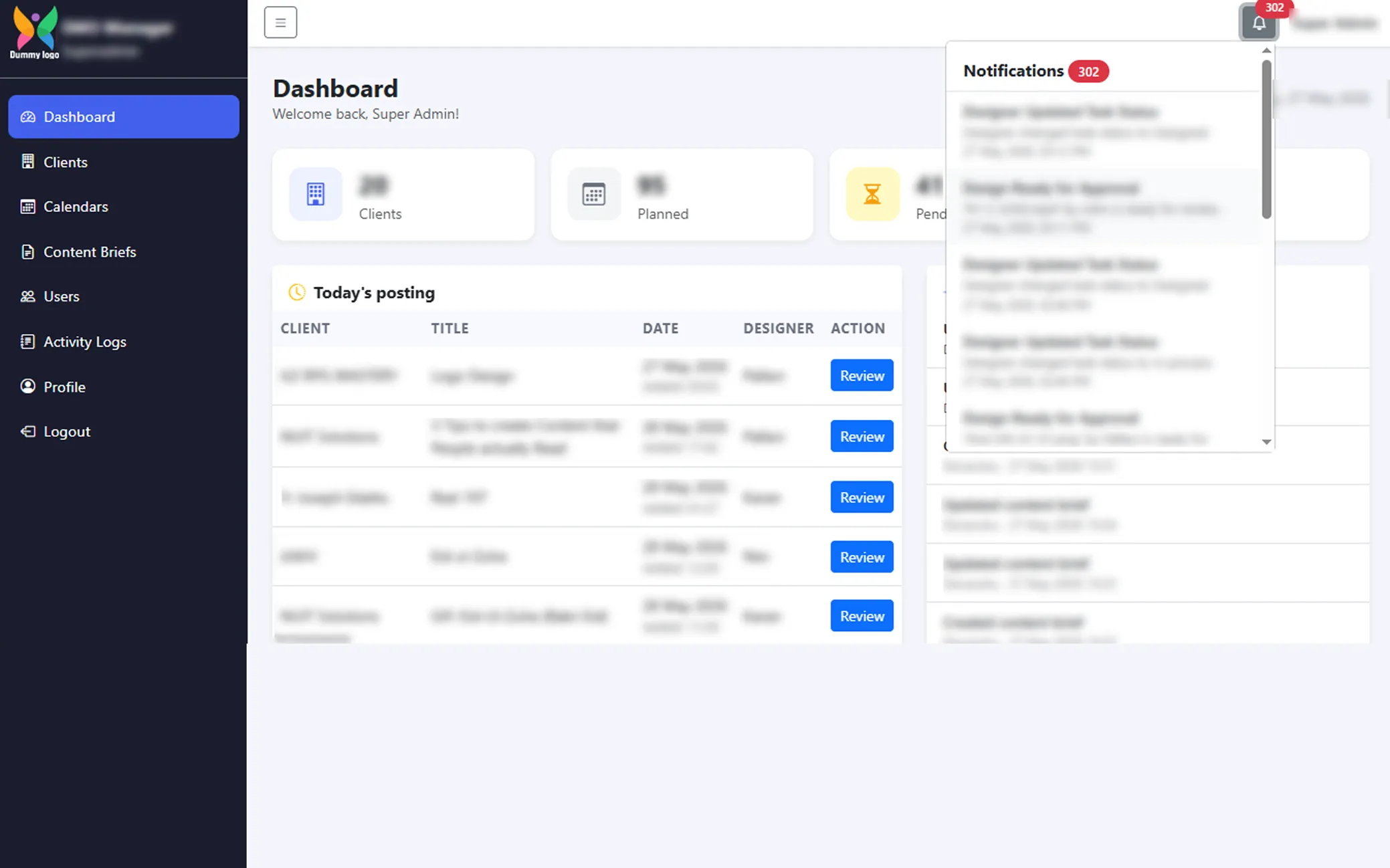
The Dashboard provides a quick overview of the entire workflow, including total clients, planned content, pending approvals, and published posts. It also displays today’s scheduled postings, recent activities, and notifications to help teams stay updated and organized.
Notifications
The Notifications panel keeps users informed with real-time updates about approvals, revisions, task changes, and design progress, ensuring smooth communication across the team.
Clients
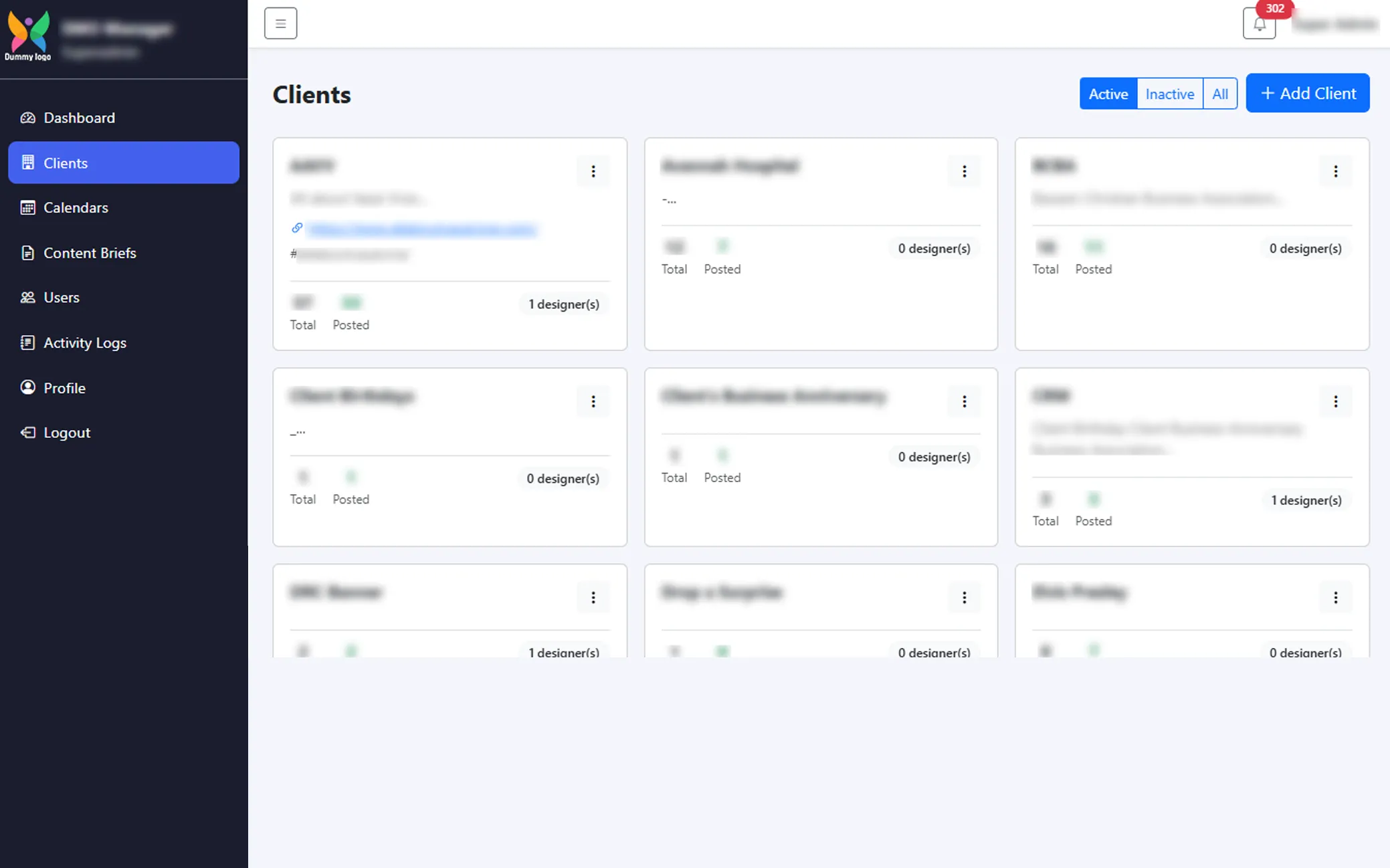
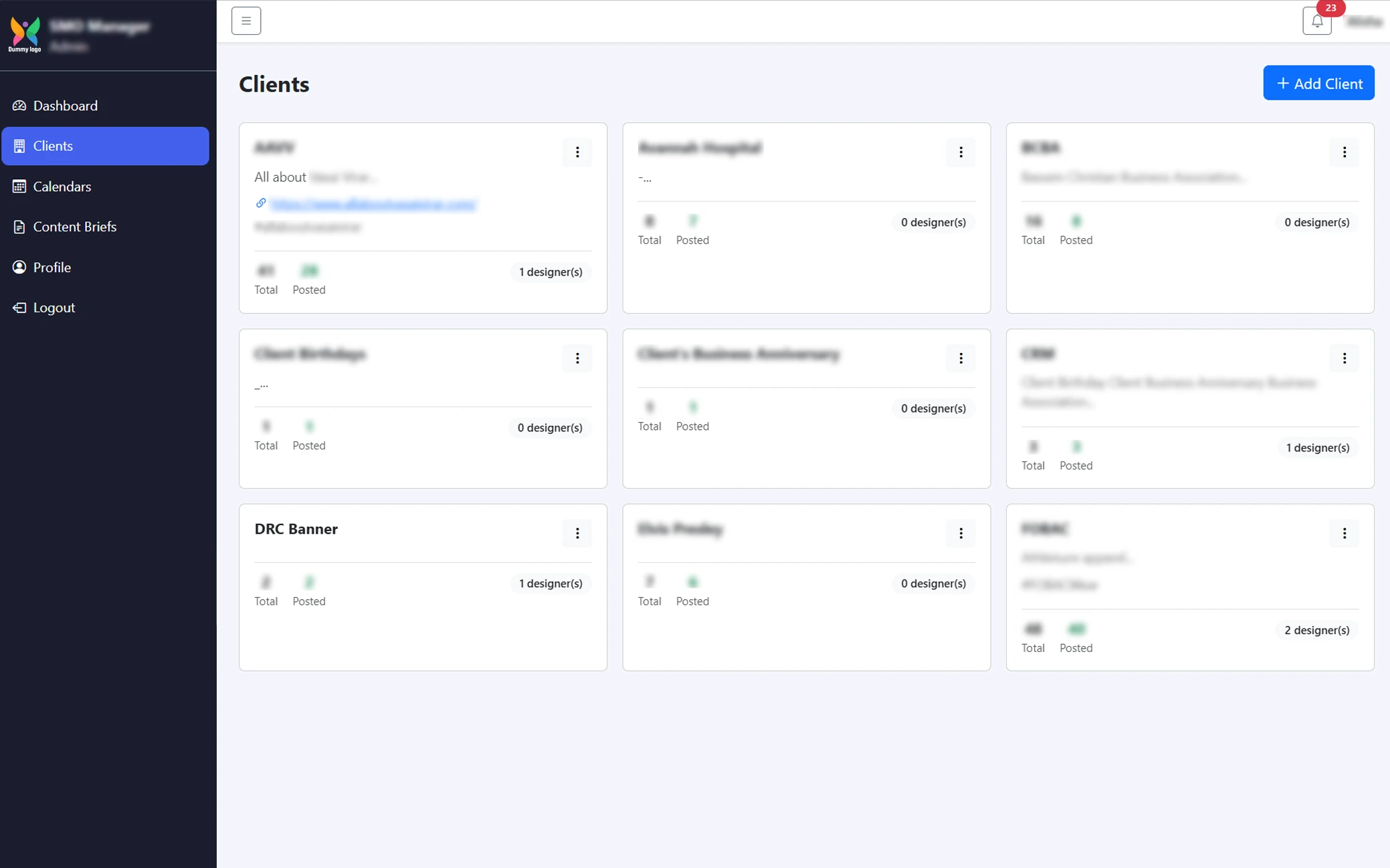
The Clients section helps manage all client accounts efficiently. Users can view client information, posting statistics, assigned designers, and overall activity while easily adding or updating client profiles.
Calendars
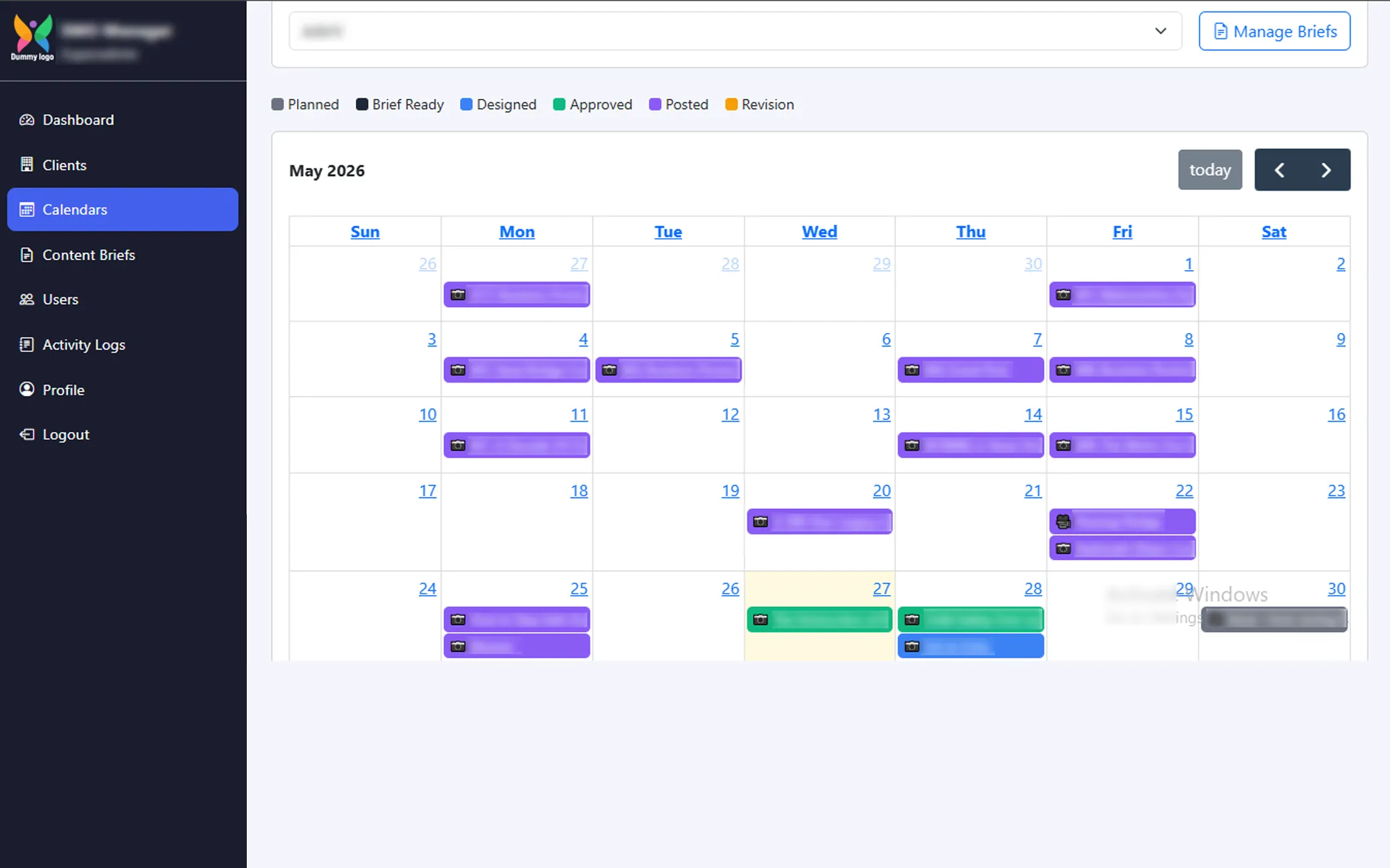
The Calendar section offers a visual content planning system where users can schedule, organize, and track posts month-wise. Different status indicators make it easy to monitor progress from planning to publishing.
Content Briefs
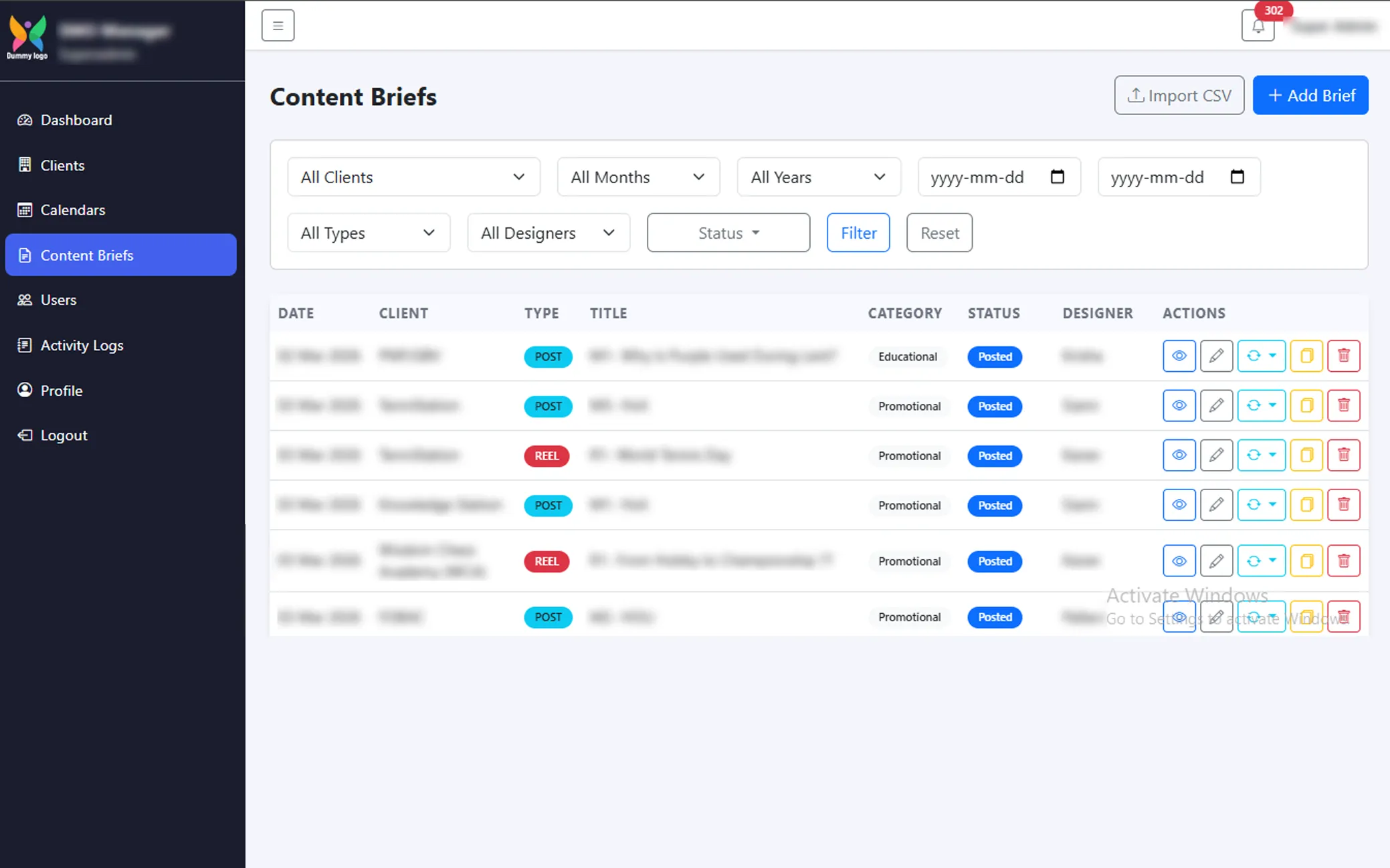
The Content Briefs section allows users to create, manage, and track content tasks in a structured way. Teams can filter briefs, assign designers, monitor statuses, and manage the complete content workflow efficiently.
User Management
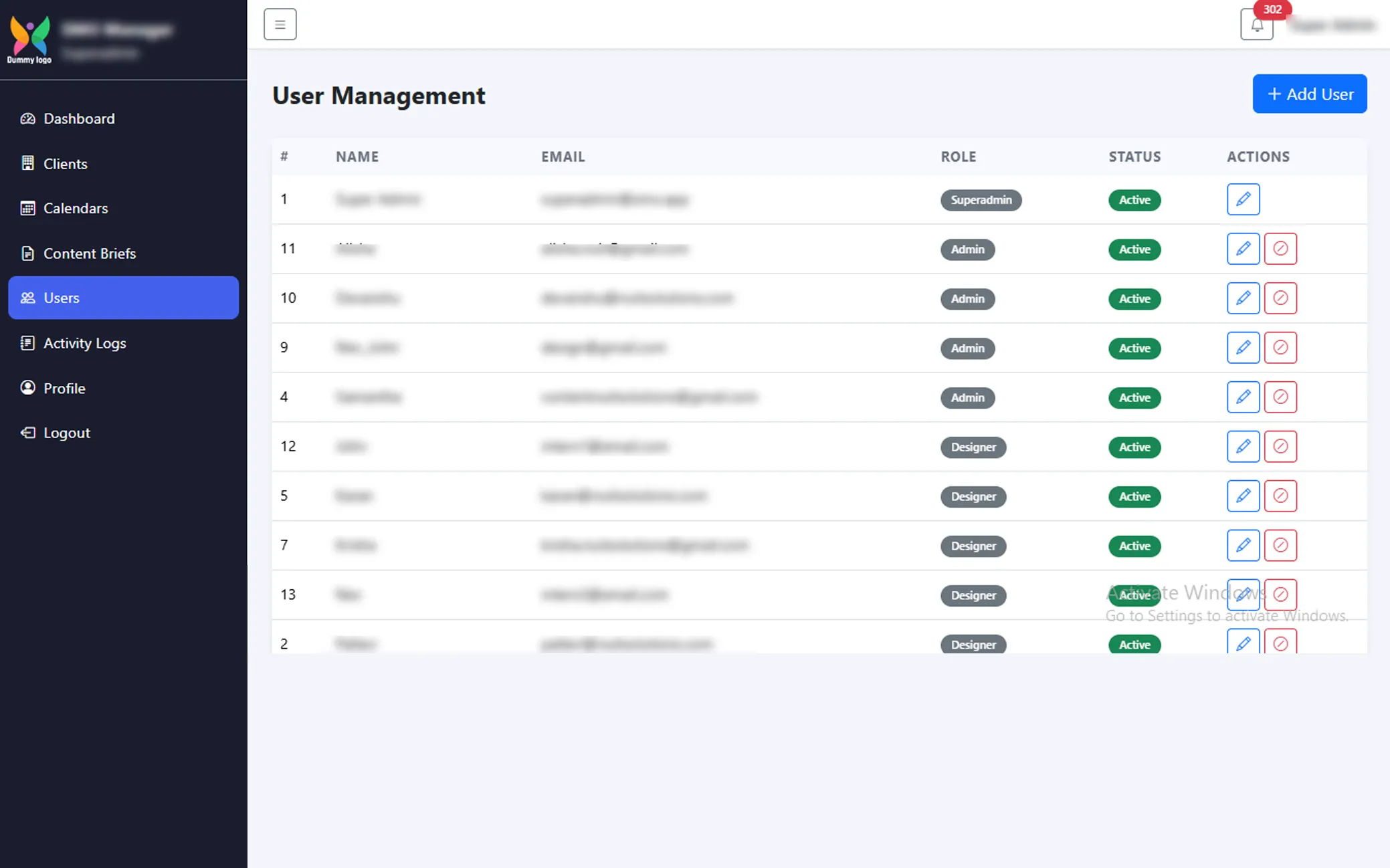
The User Management section allows admins to manage all platform users and roles. Admins can add, edit, activate, or deactivate users directly from this page. Each user is assigned a role such as Admin or Designer for access control. This helps maintain secure and organized team management within the system.
Activity Logs
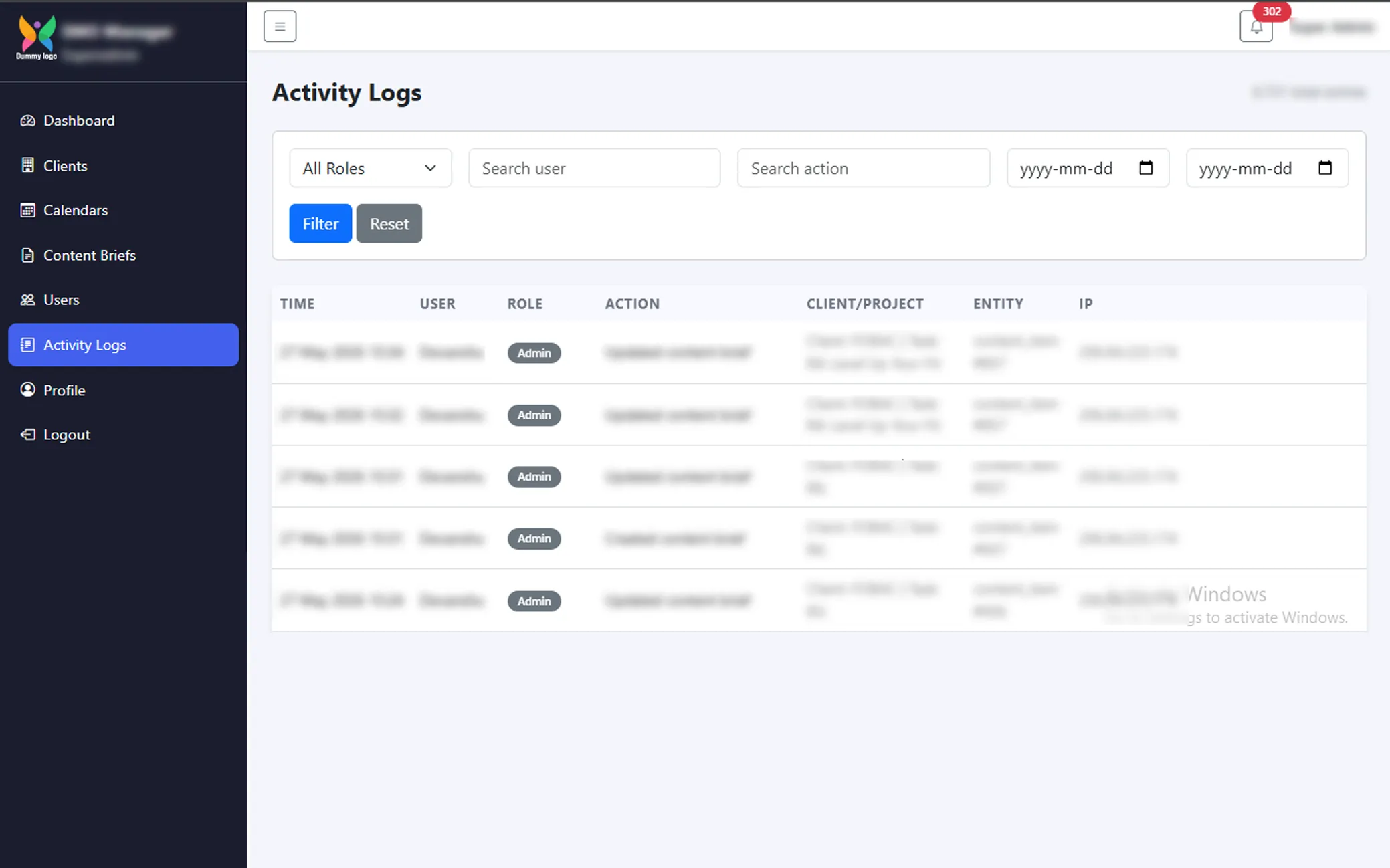
The Activity Logs section records every important action performed within the platform. It helps administrators monitor updates, approvals, edits, and workflow history for better transparency and accountability.
My Profile
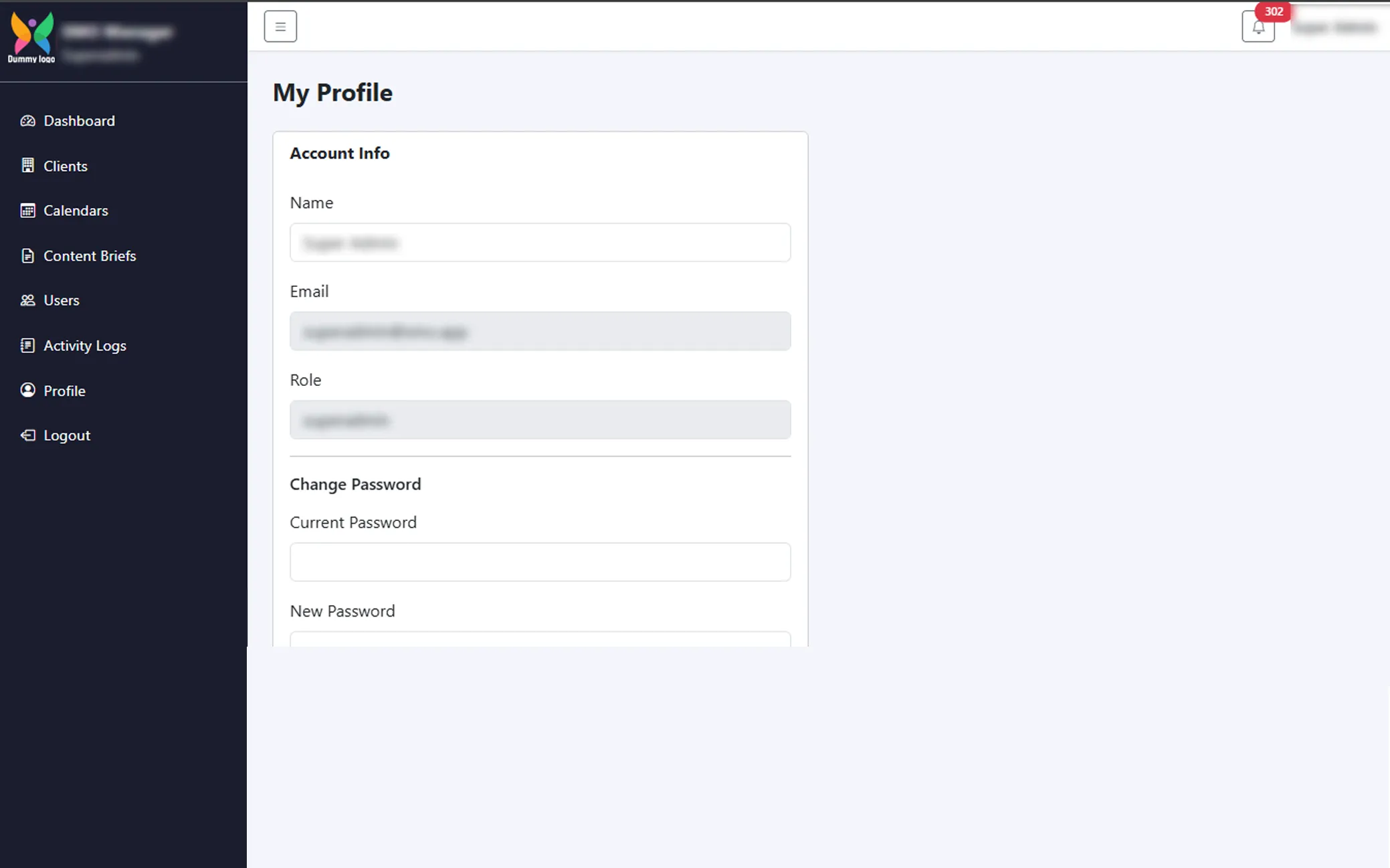
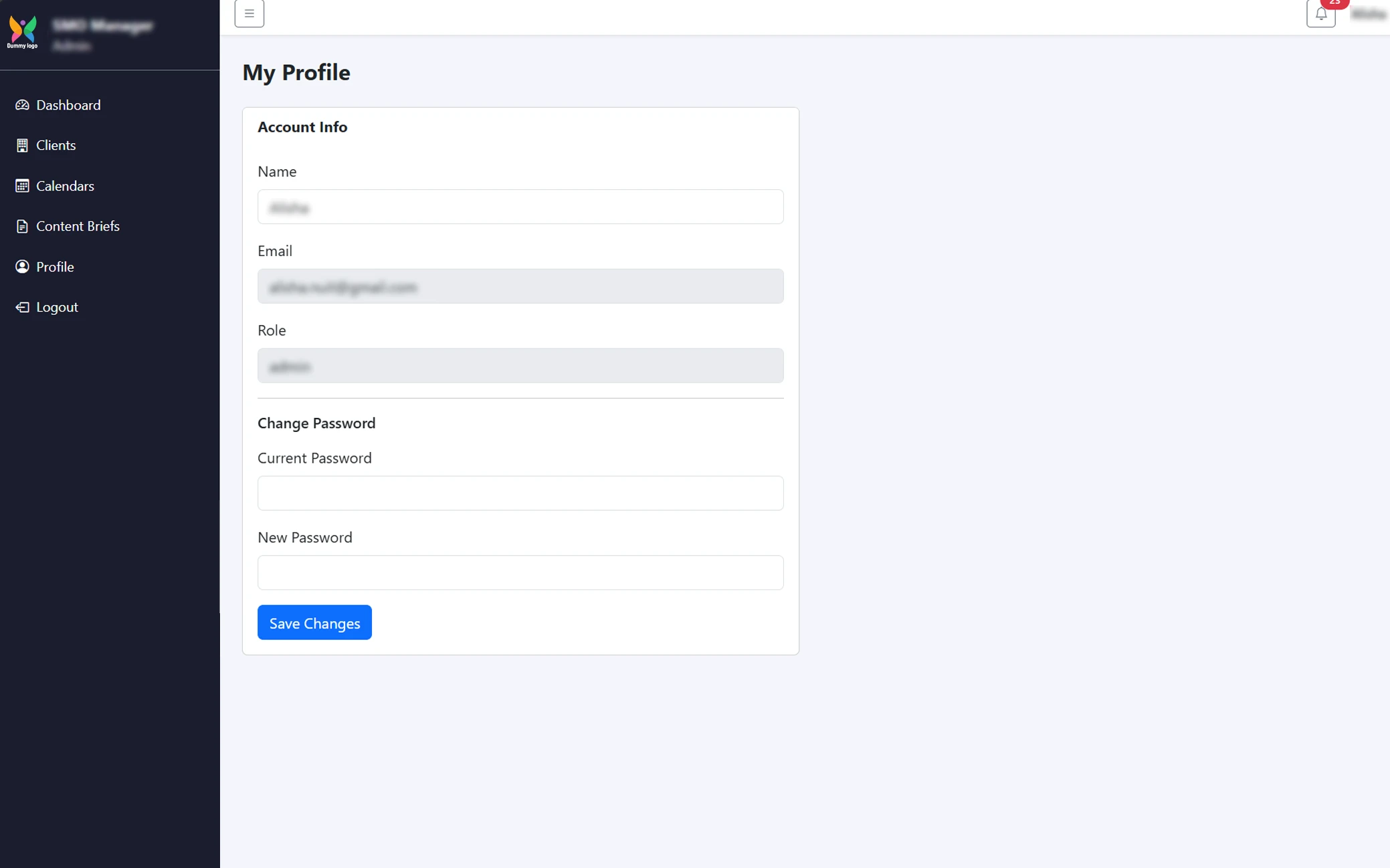
The profile section allows users to view and manage their account information. Users can check their name, email, and assigned role from a single page. It also provides an option to securely change the account password. This section helps users maintain and update their personal account settings easily.
Admin Dashboard
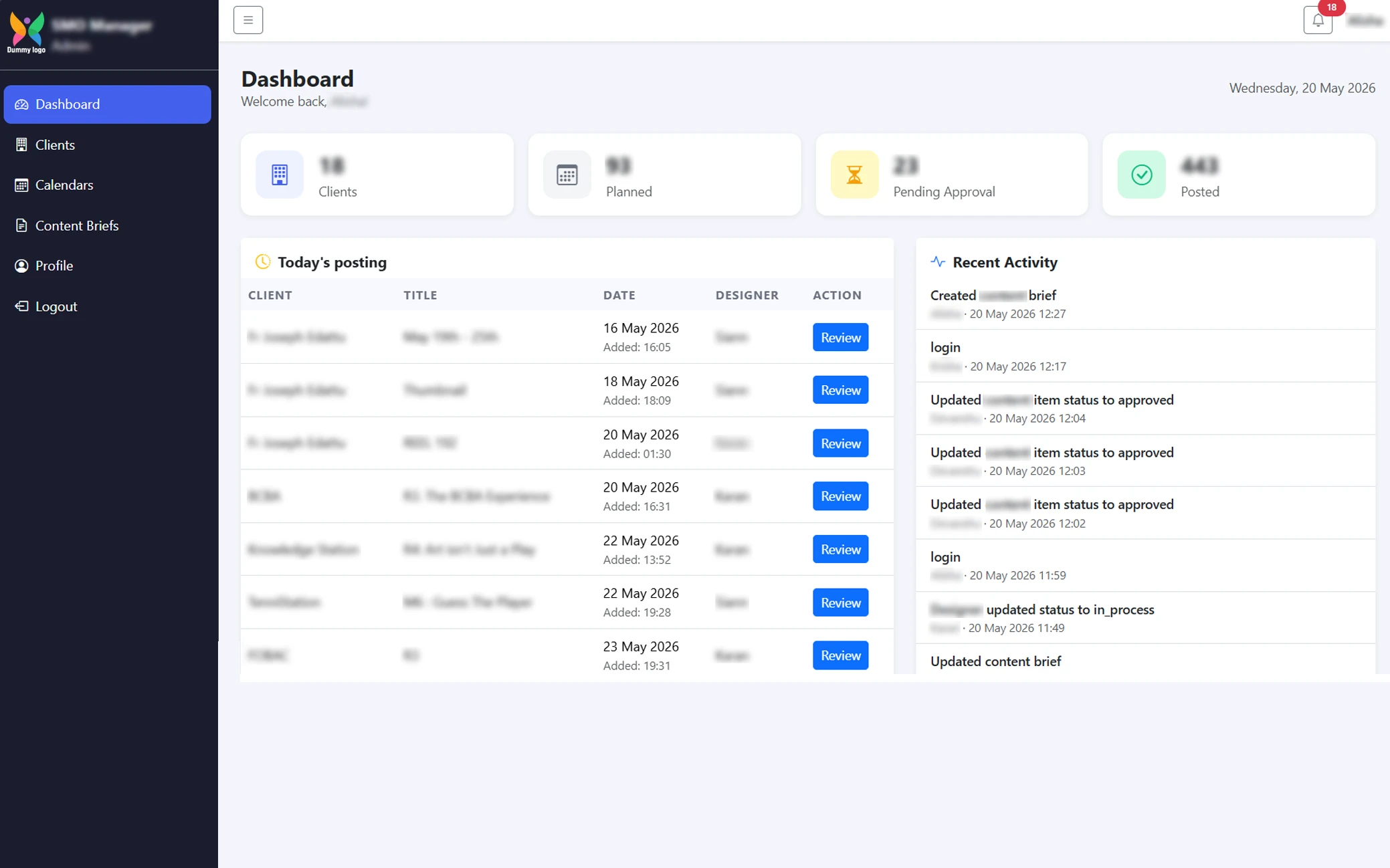
The Dashboard acts as the central overview panel of the SMO Manager system, providing administrators with quick insights into platform performance. It displays key statistics such as total clients, planned content, pending approvals, and published posts. The dashboard also includes today’s scheduled postings and recent activity logs, allowing admins to monitor workflows, track updates, and review task progress efficiently.
Clients Management
The Clients module allows administrators to manage all registered clients in one organized interface. Each client card displays essential information such as business details, website links, hashtags, posting statistics, and assigned designers. This feature helps streamline client organization, monitor content output, and maintain clear visibility of client-specific performance.
Content Calendars
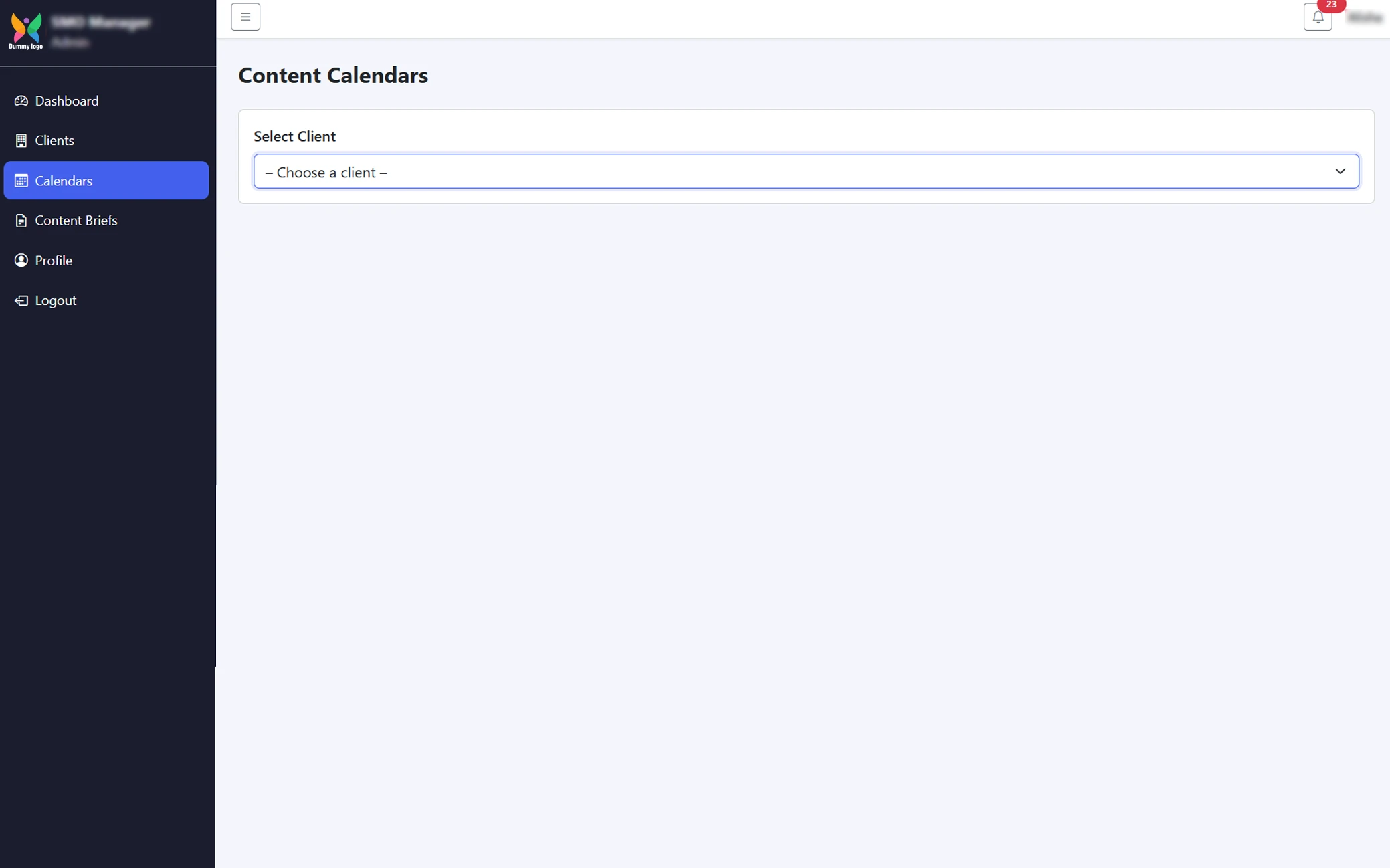
The Content Calendar module enables users to organize and schedule client content efficiently. Administrators can select a client to view their posting schedule, plan future content, and maintain a structured publishing workflow. This ensures timely delivery of social media campaigns while improving coordination between teams.
Content Briefs
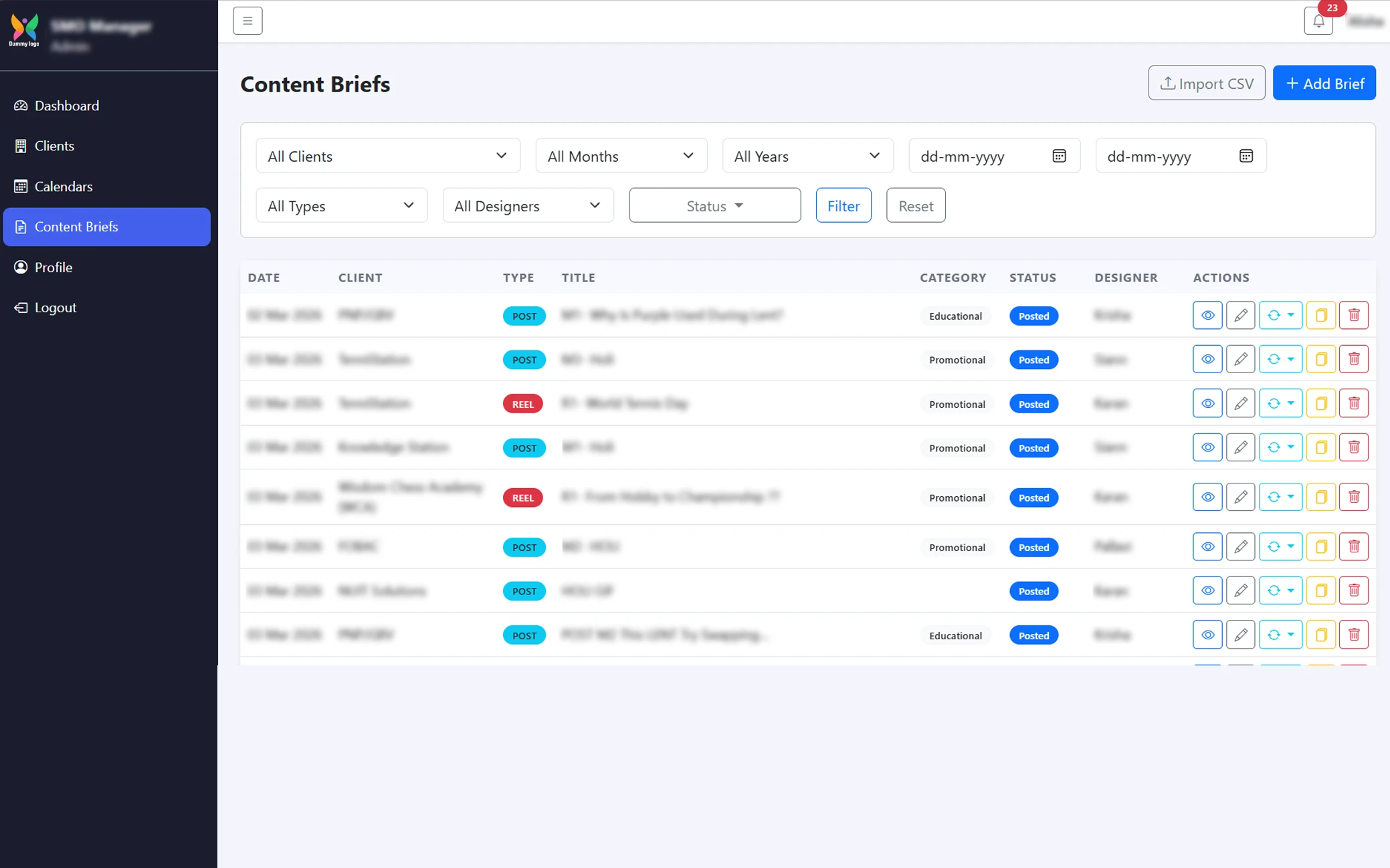
The Content Briefs module is designed for creating, managing, and tracking all content requirements. It provides advanced filtering options by client, month, year, type, designer, and status for easy access. Each brief contains details such as content type, title, category, assigned designer, and publishing status, making collaboration, approvals, and revisions more organized and transparent.
New Content Brief
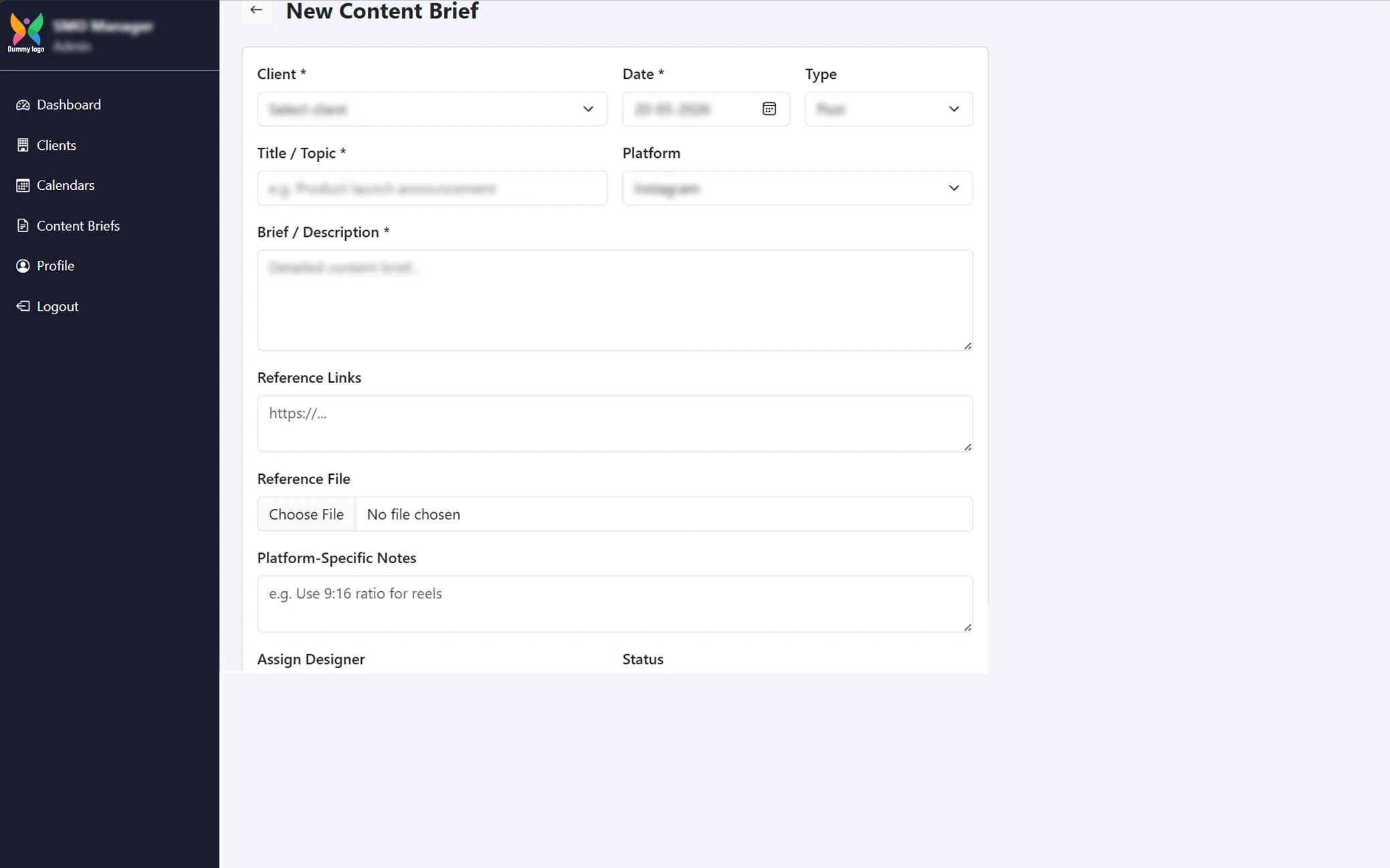
The New Content Brief section enables admins to create and assign content tasks to designers. It includes fields such as client name, date, platform, content title, description, reference links/files, platform-specific notes, assigned designer, and task status to ensure smooth workflow and communication between teams.
Designer Dashboard
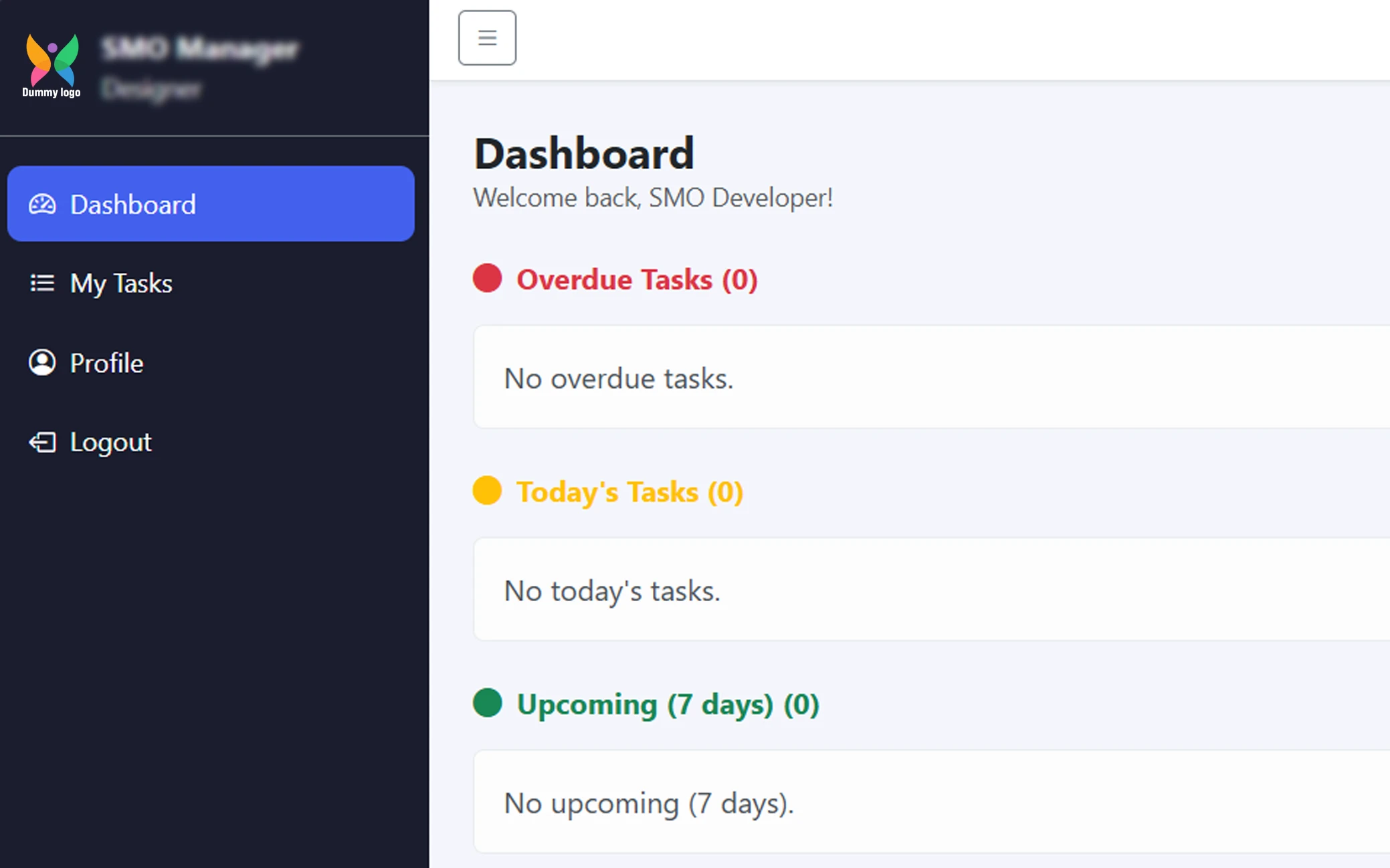
The Dashboard gives designers a quick overview of their tasks and work status. It displays overdue tasks, today’s tasks, and upcoming tasks for the next 7 days, helping users stay organized and manage deadlines efficiently.
My Tasks
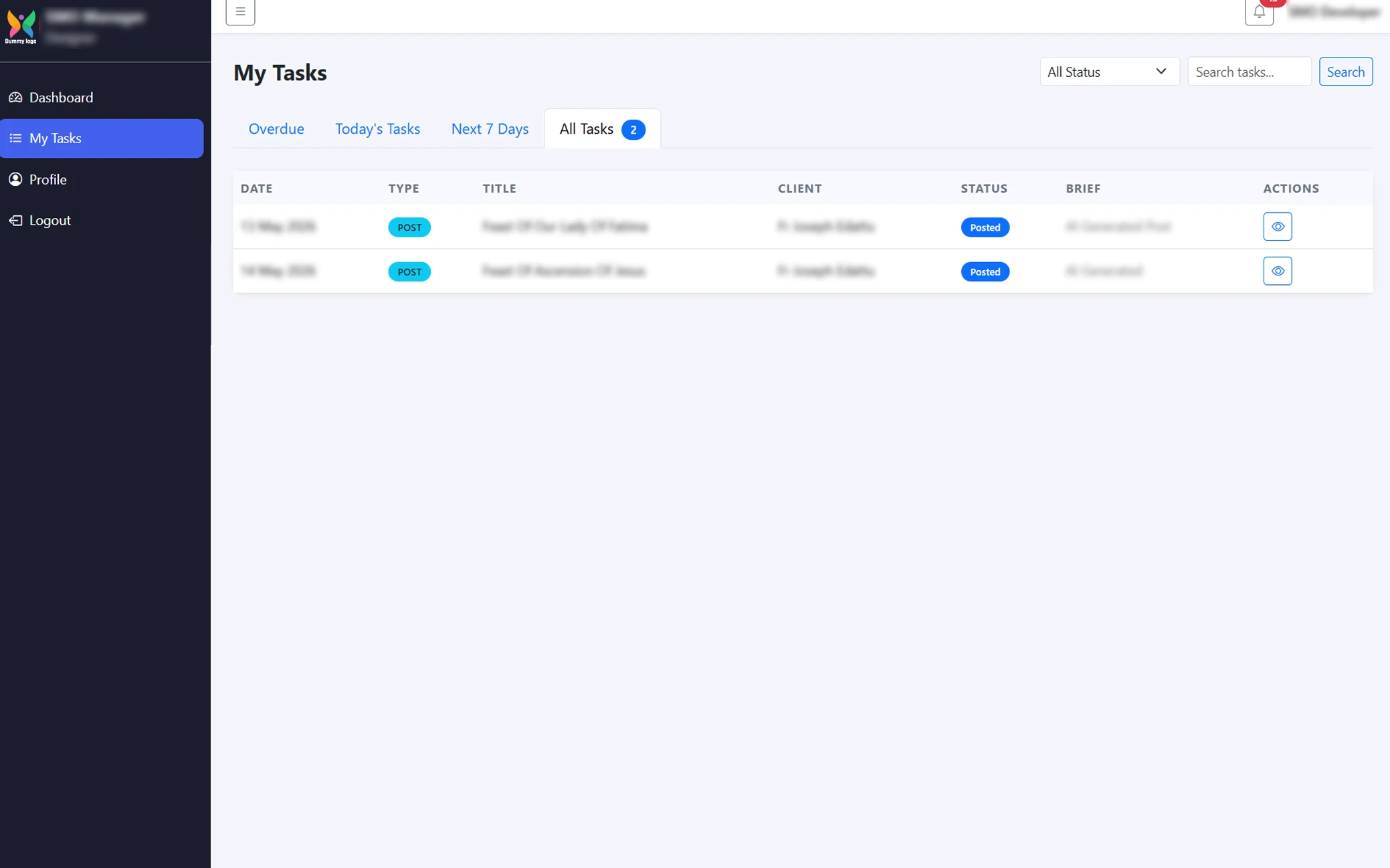
The My Tasks section allows designers to view and manage all assigned tasks in one place. Tasks are categorized into Overdue, Today’s Tasks, Next 7 Days, and All Tasks for easy tracking. Users can also search tasks, filter by status, and view detailed task information.
Profile
The Profile section contains the user’s account information, including name, email, and role. It also provides an option to securely update and manage the account password whenever required.
Purpose
The purpose of SMO Manager is to streamline social media operations through a centralized platform. It helps teams manage clients, schedule content, assign tasks, track progress, and improve productivity with better workflow management.
Modules
The application includes modules such as Admin Dashboard, Designer Dashboard, Clients Management, Content Calendar, Content Briefs, My Tasks, Notifications, User Management, Activity Logs, and Profile Management. These modules simplify social media planning and team coordination.
Features
SMO Manager provides secure login, client management, content scheduling, task assignment, workflow tracking, and real-time notifications. It helps admins and designers collaborate efficiently through dashboards, calendars, content briefs, and activity monitoring.


