
Tennis Court Booking System
Tennis Court Booking System
A smart and easy-to-use booking platform designed for booking courts, allowing players to reserve courts, manage slots, and plan their game effortlessly. Built to simplify scheduling, reduce manual bookings, and give users a smooth, hassle-free experience.
Technology Used
-

PHP
-

mySQL
-

HTML
-

CSS
-

Javascript

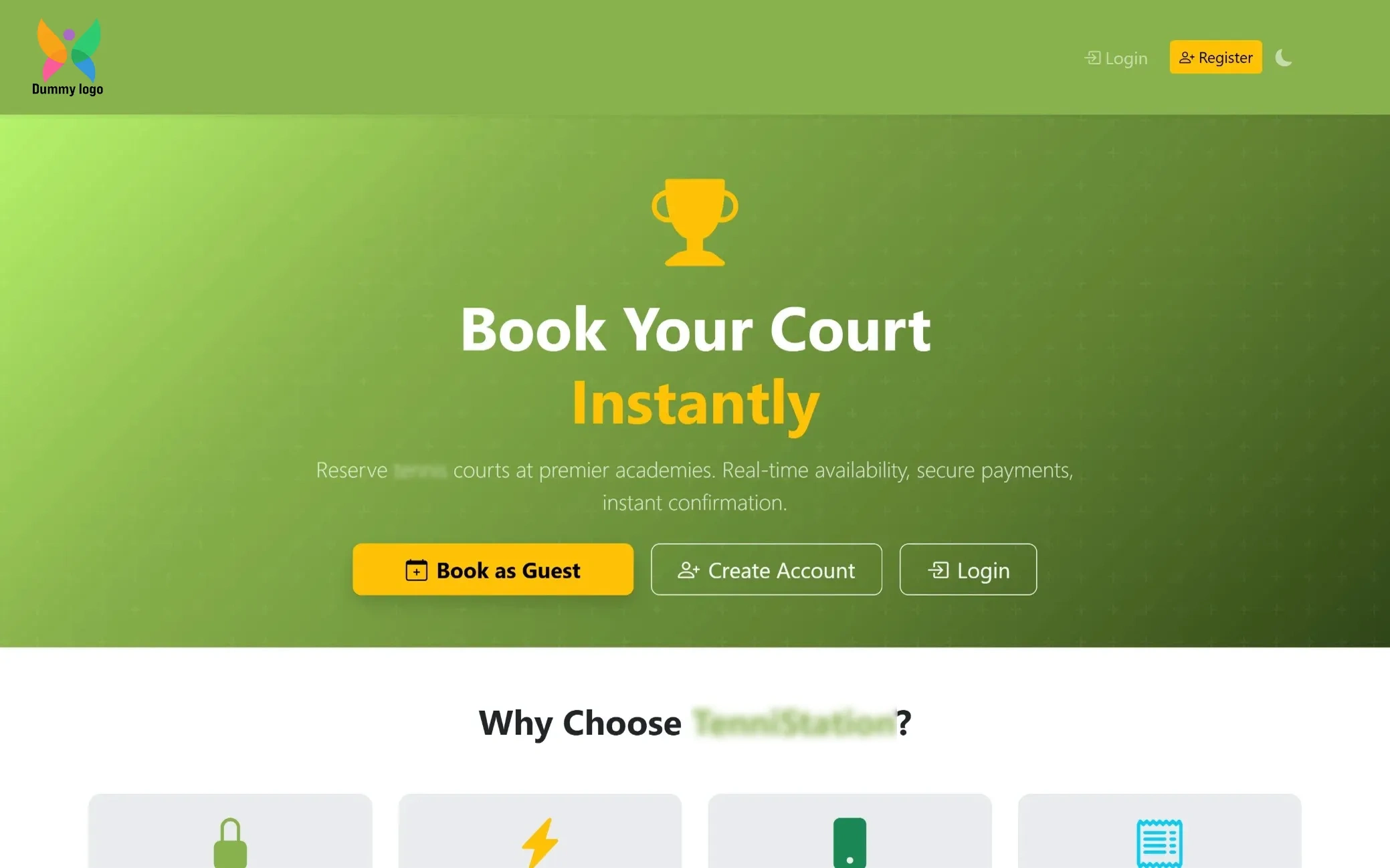
Court Booking Portal
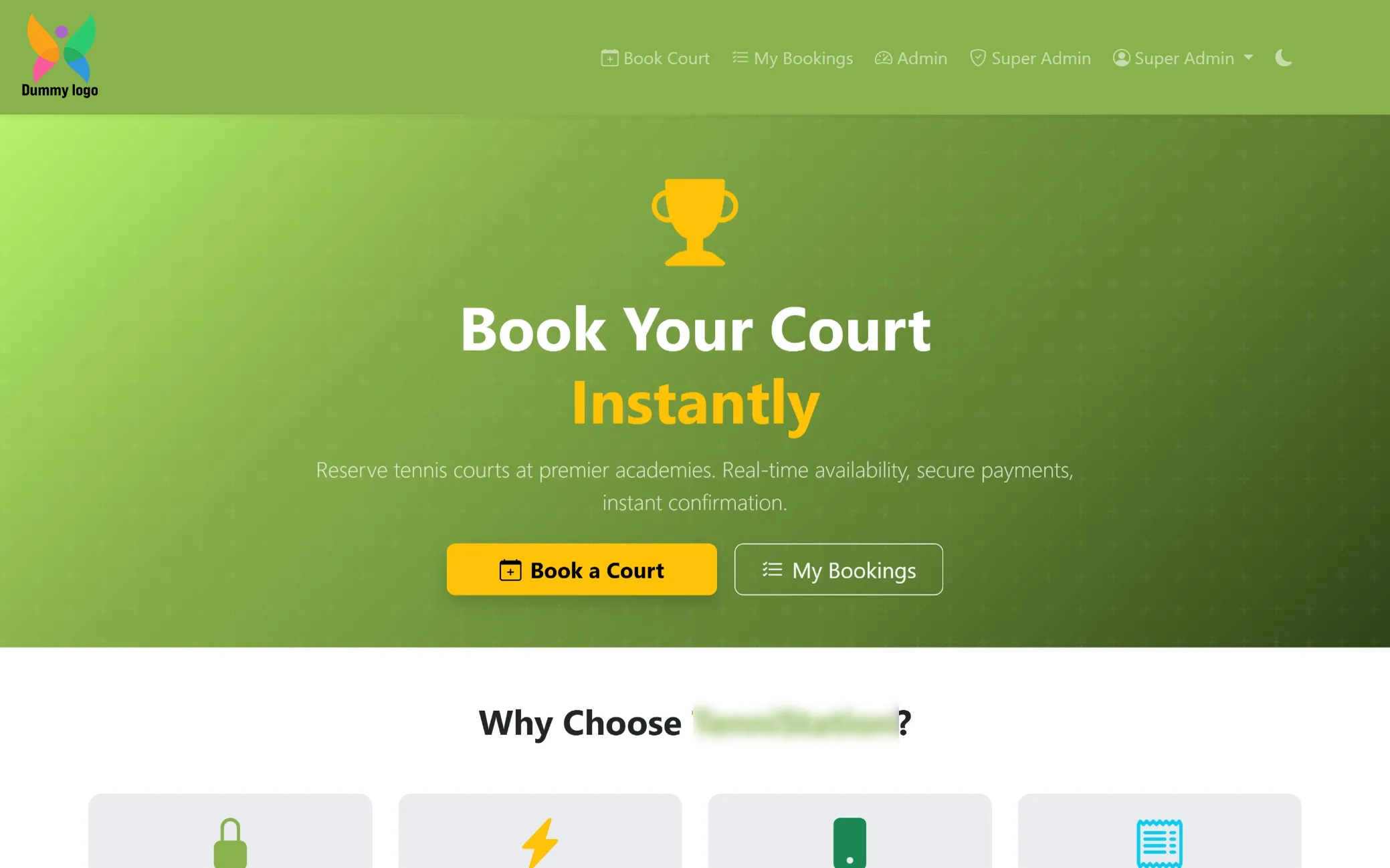
A clean and welcoming home screen where users can quickly book courts, create an account, or log in with ease. Real-time availability, instant booking options, and a light-to-dark mode toggle make the experience smooth, flexible, and user-friendly right from the start.
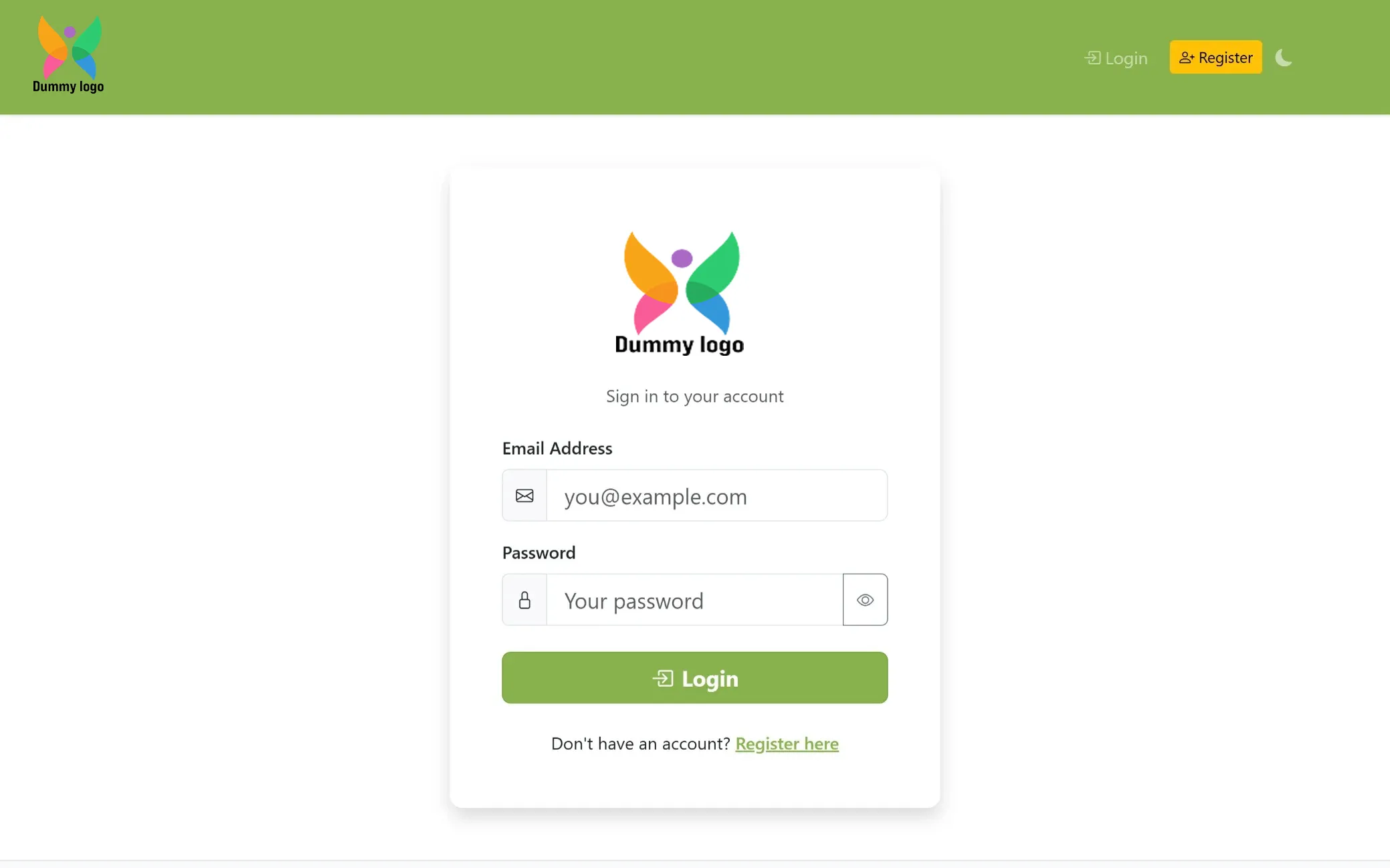
Secure Login
A simple and secure login screen that allows users to access their account quickly and continue their booking journey. The clean layout ensures a smooth experience with minimal steps and easy navigation.
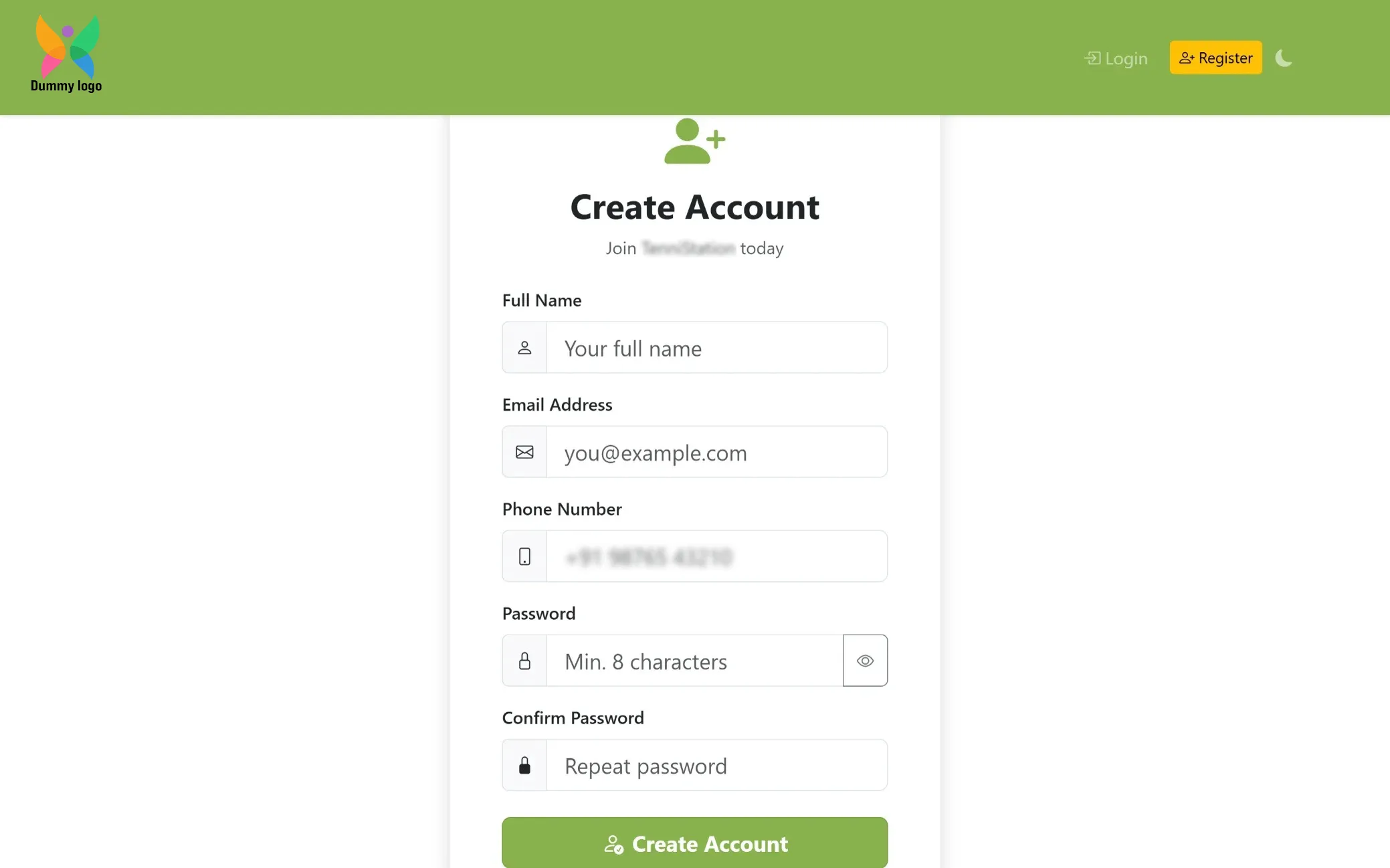
Quick Registration
A simple sign-up screen that allows new users to create their account in just a few steps. The form is designed to be clear and easy, making the onboarding process quick and hassle-free.
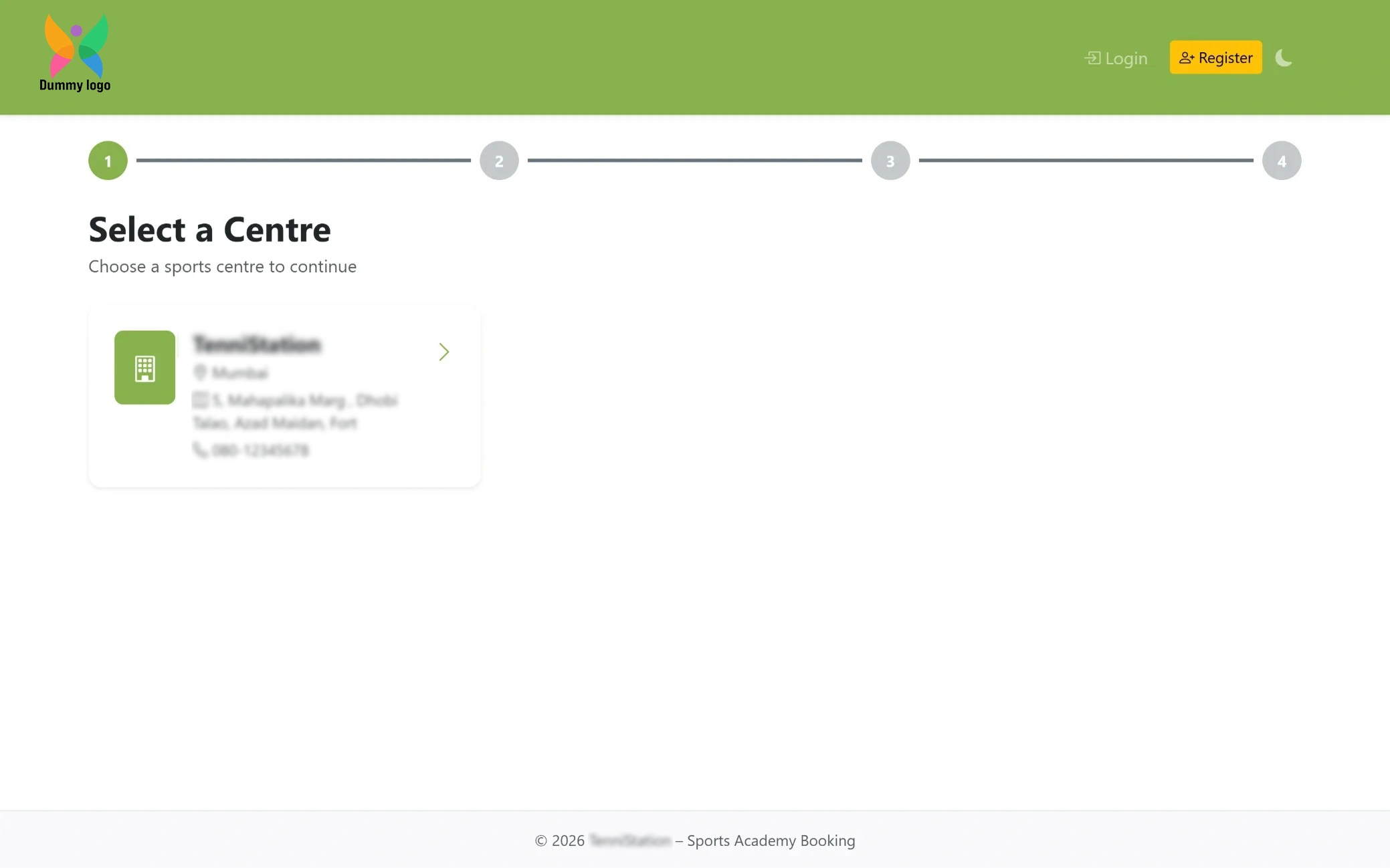
Select Centre
A simple selection screen where users can choose their preferred sports centre to continue. Each option is clearly displayed and tappable, making it easy to pick a location and move ahead with booking.
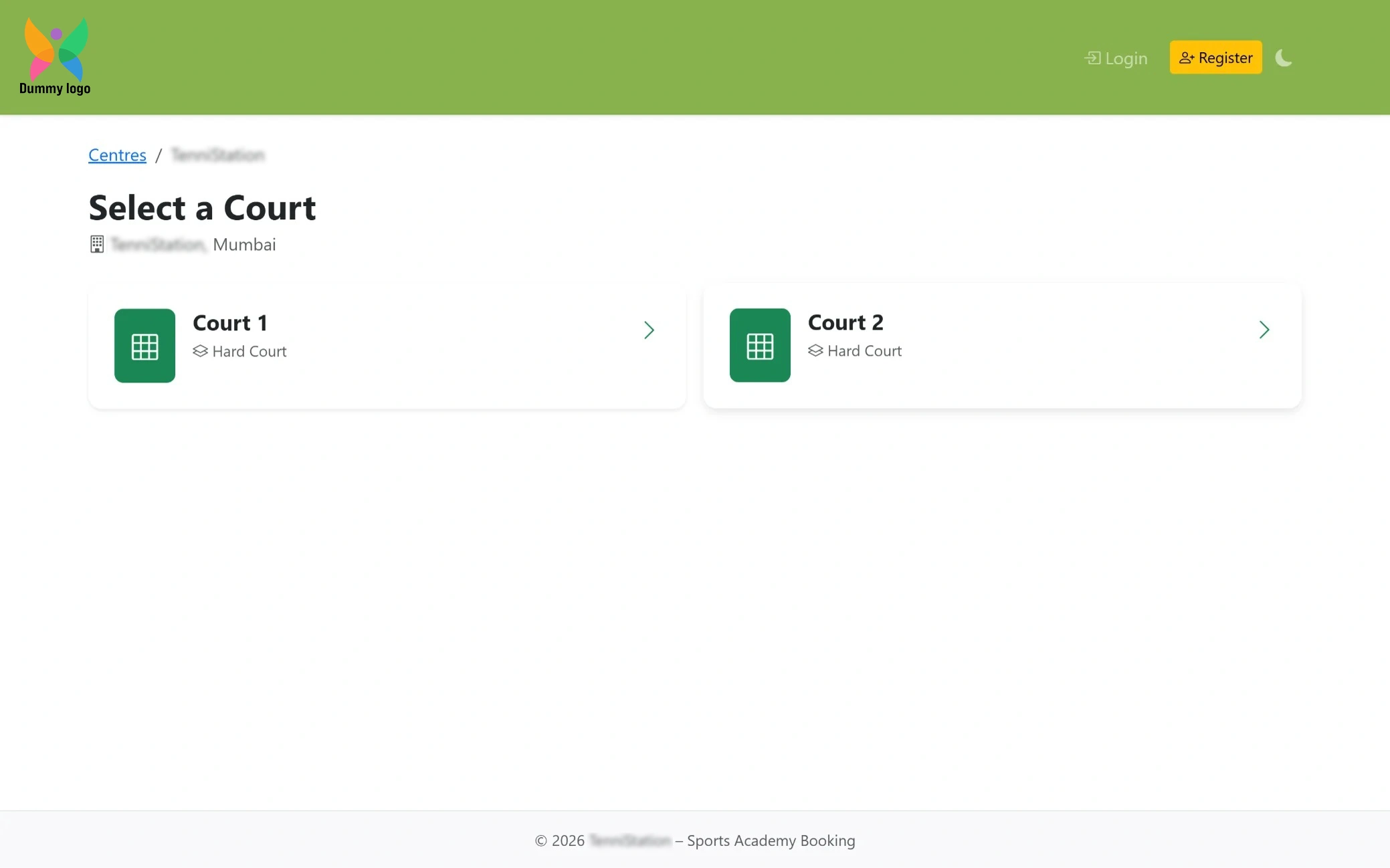
Choose Your Court
After selecting the centre, users can easily pick their preferred court from the available options. Each court is clearly listed with its type, making the selection quick, smooth, and tailored to the player’s preference.
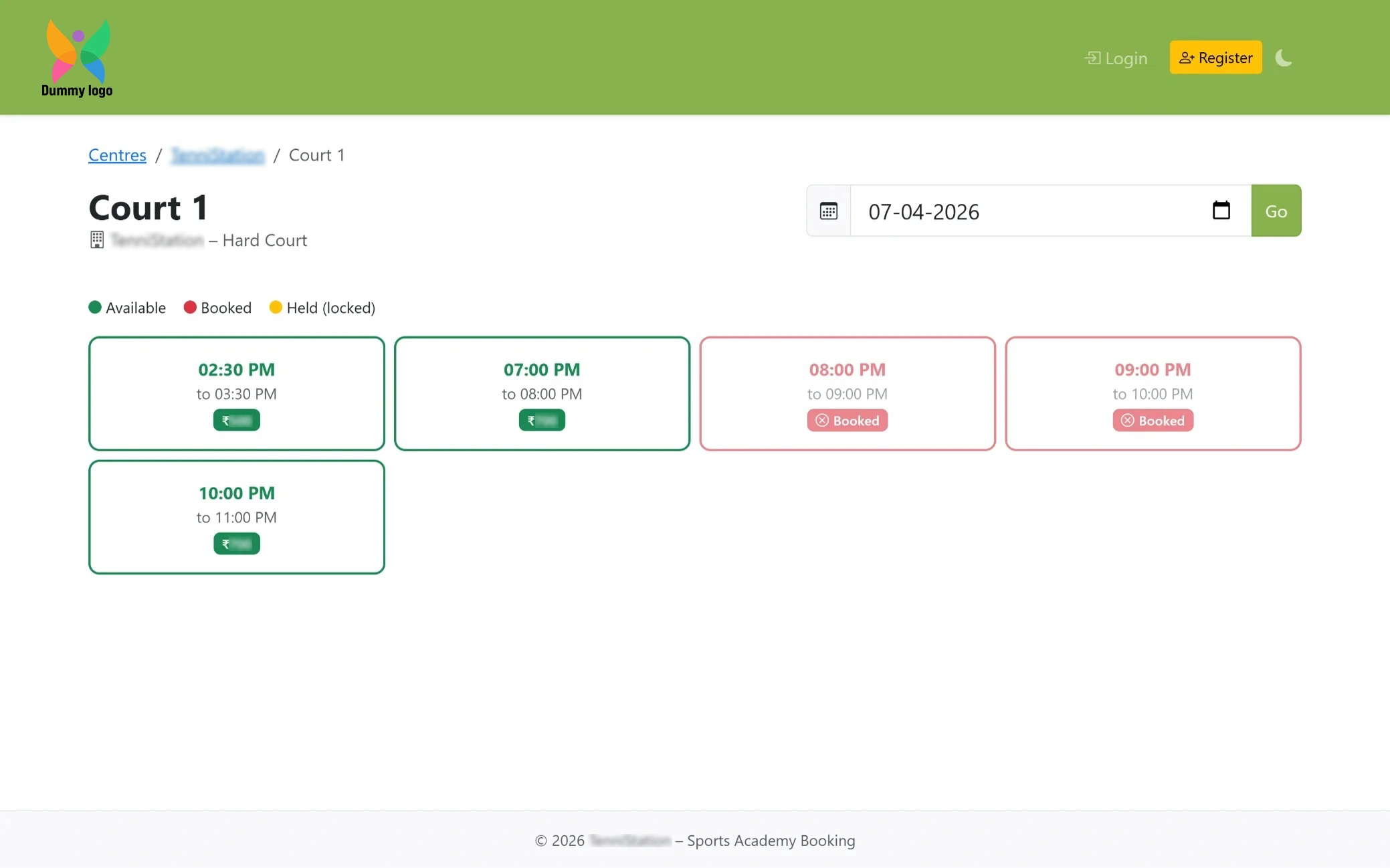
Court Slot Booking
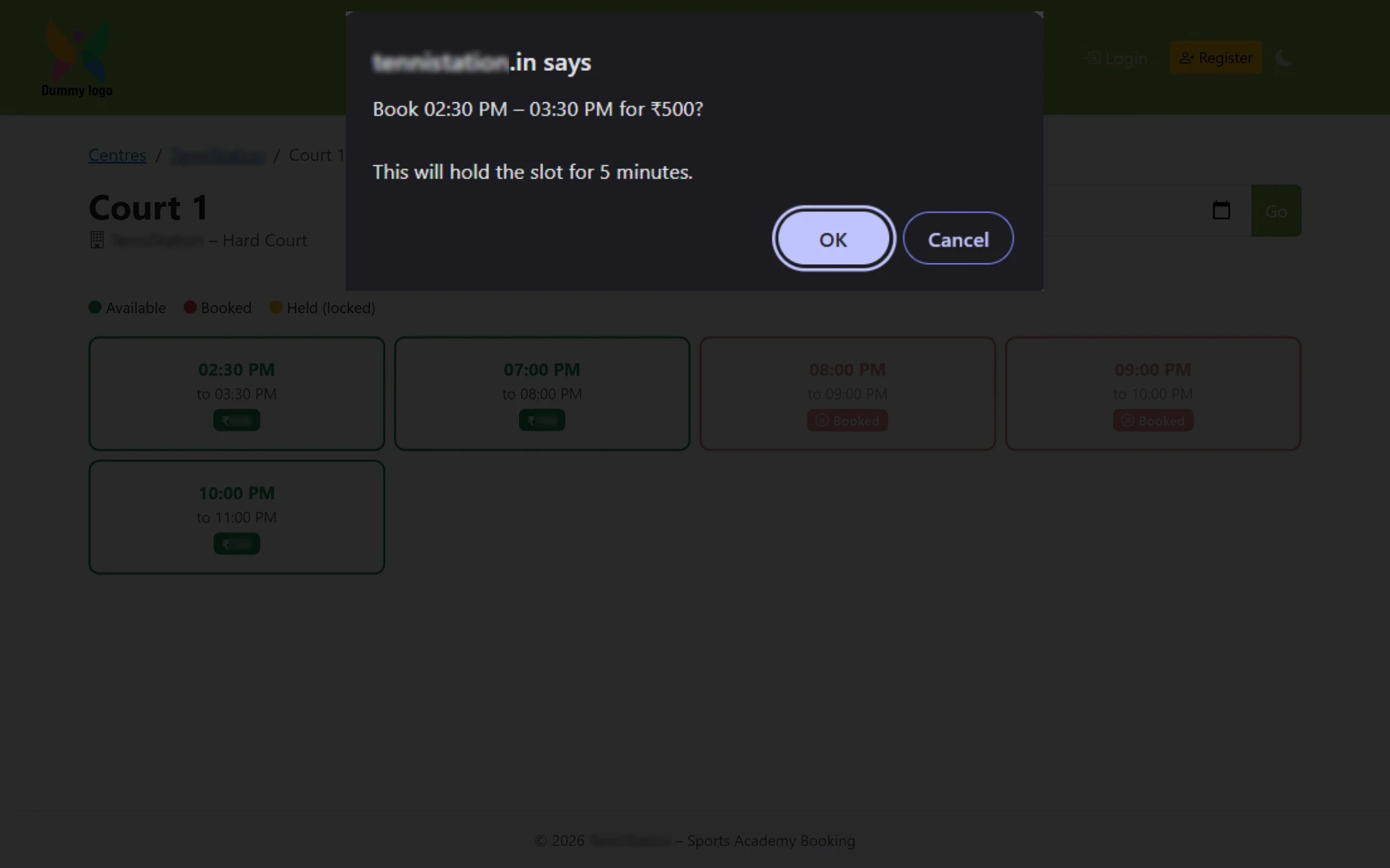
Booking Confirmation
A quick confirmation pop-up appears after selecting a slot, temporarily holding it for a few minutes. Users can review their selection and proceed or cancel, ensuring a smooth and controlled booking experience.
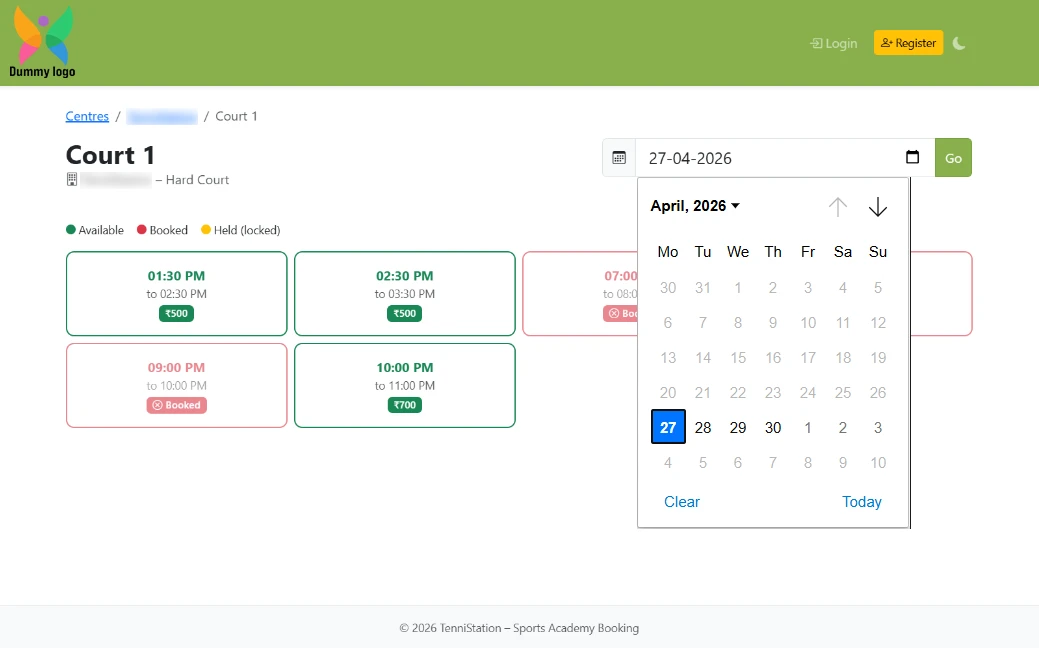
Choose Booking Date
An easy-to-use calendar view that allows users to pick their preferred booking date. The interactive layout makes it simple to navigate through dates and plan bookings in advance with ease.
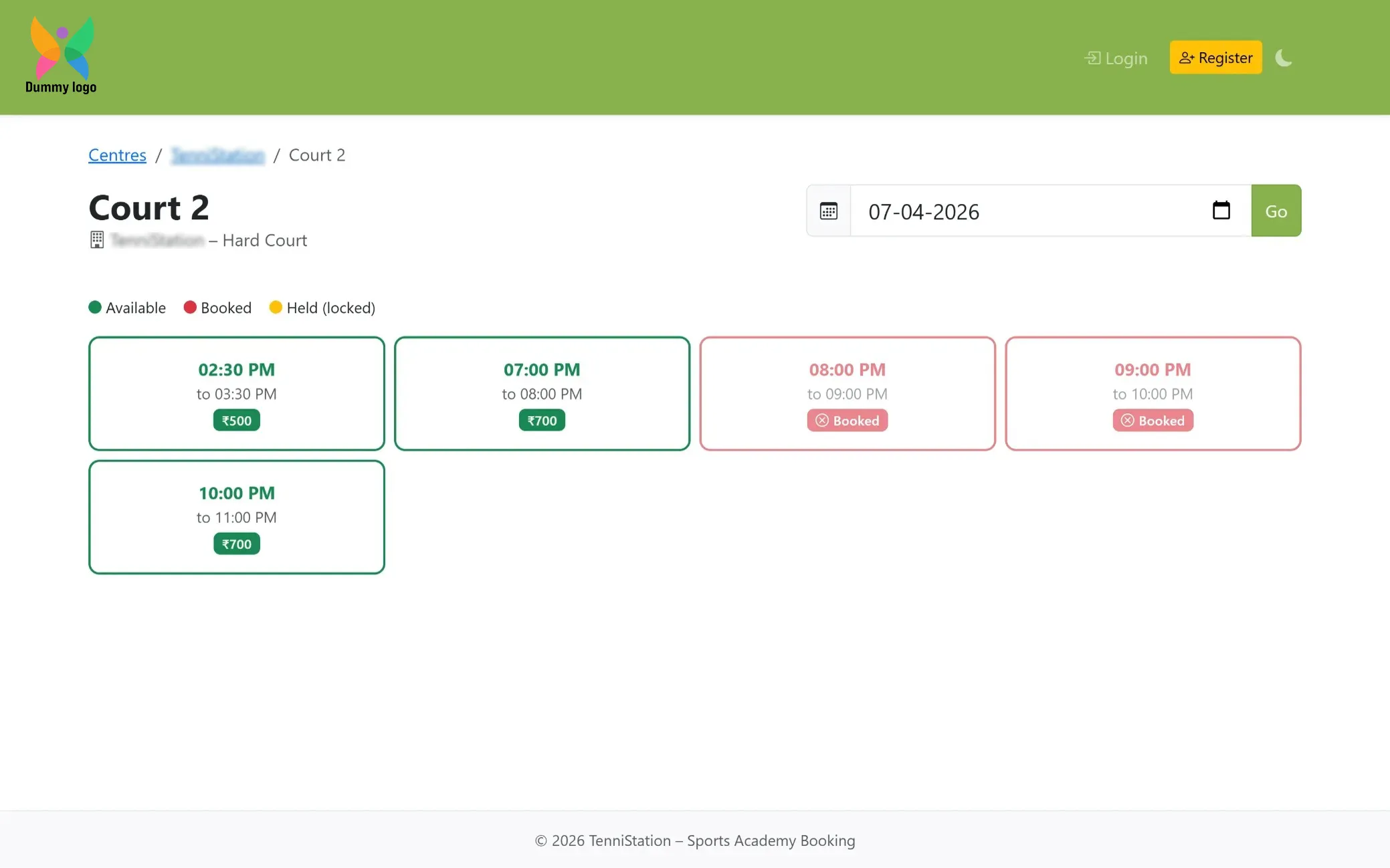
Court 2 Booking
A smooth booking flow for Court 2, where users can select their preferred date using the calendar and view available time slots with real-time updates. Color-coded indicators and clear pricing make it easy to choose, confirm, and complete the booking without any confusion.
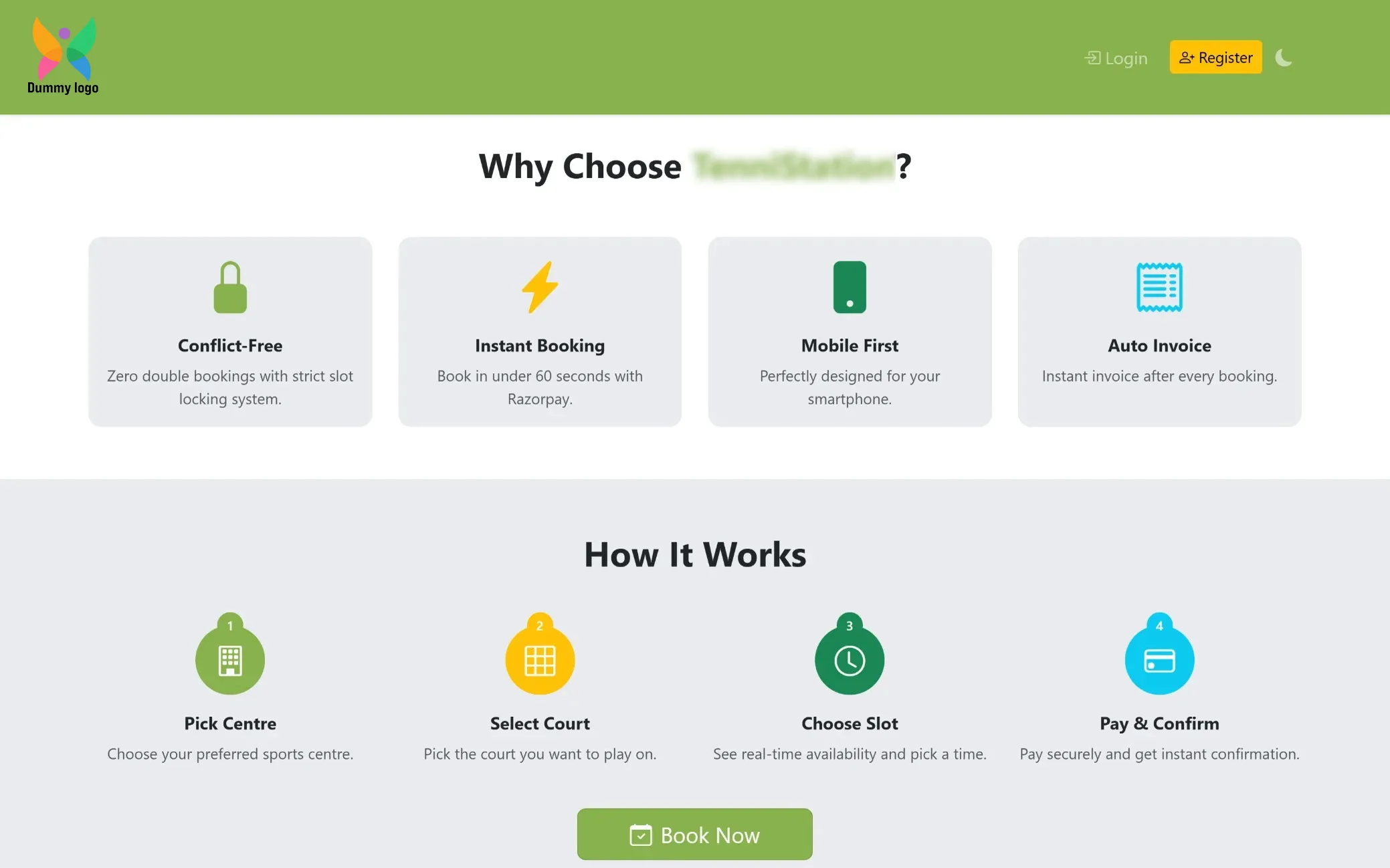
Platform Highlights
A simple section on the home page that showcases key features of the booking system. It gives users a quick understanding of what the platform offers before they proceed.
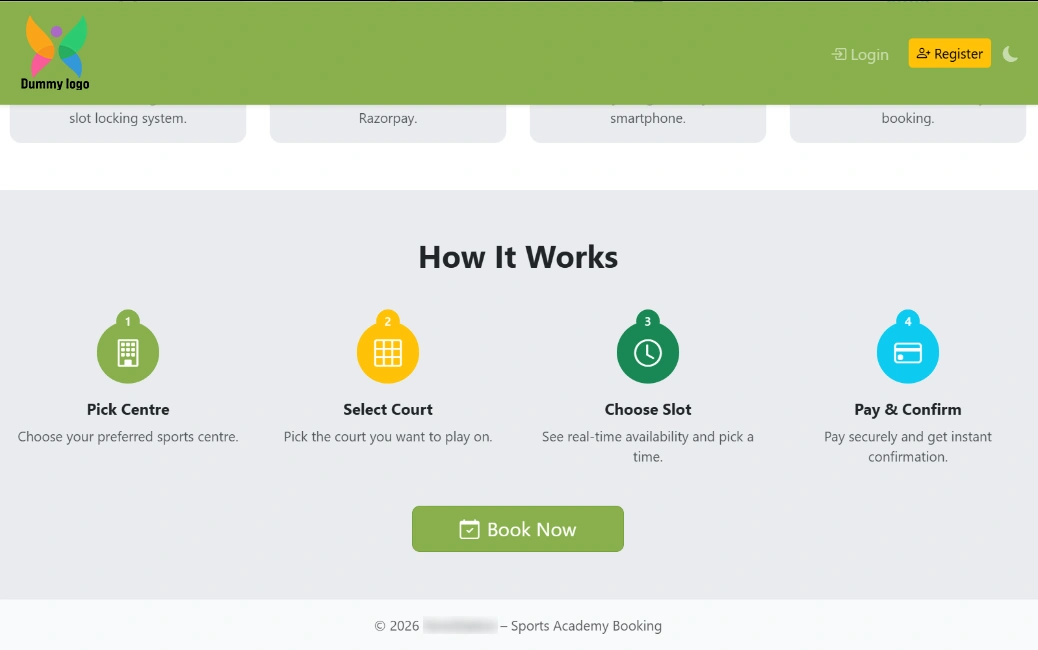
Simple Booking Steps
A clear text section explaining how the booking process works, guiding users from selecting a centre to confirming their slot. With a Book Now button placed below, users can quickly take action and start their booking without any confusion.
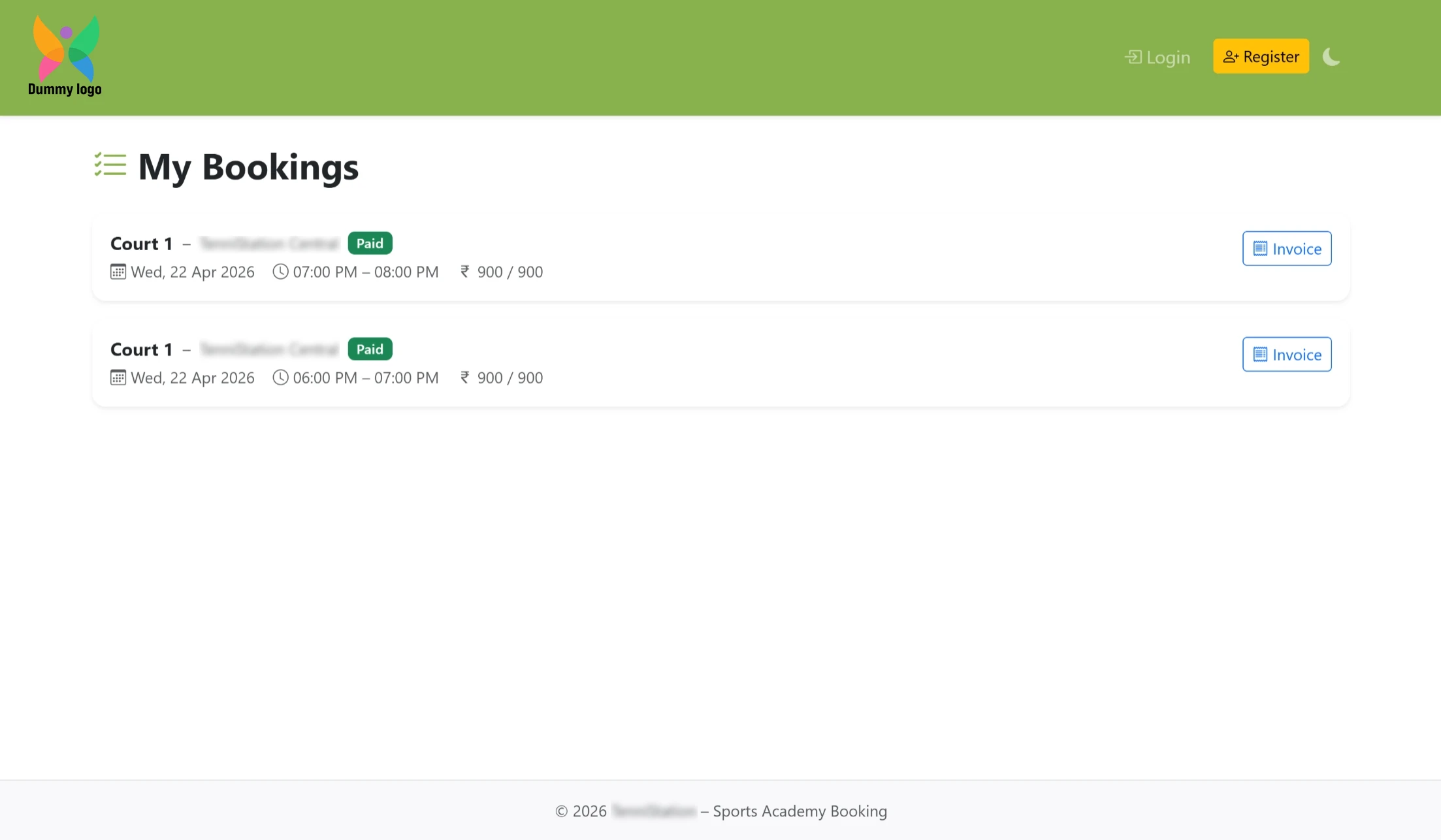
My Bookings
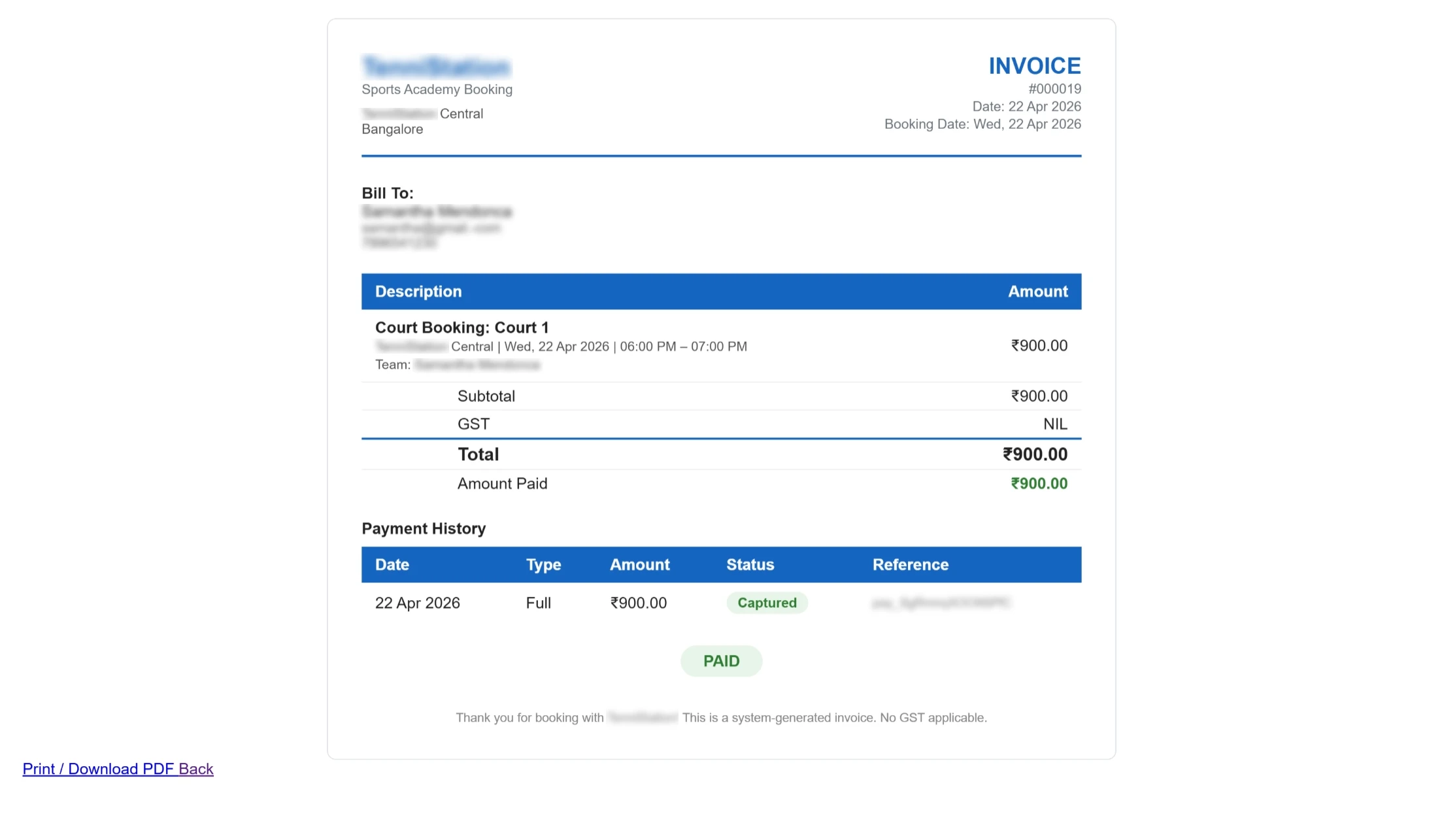
A dedicated section where users can view all their past and upcoming court bookings along with complete details. An invoice option is also available, making it easy to access billing information whenever needed.
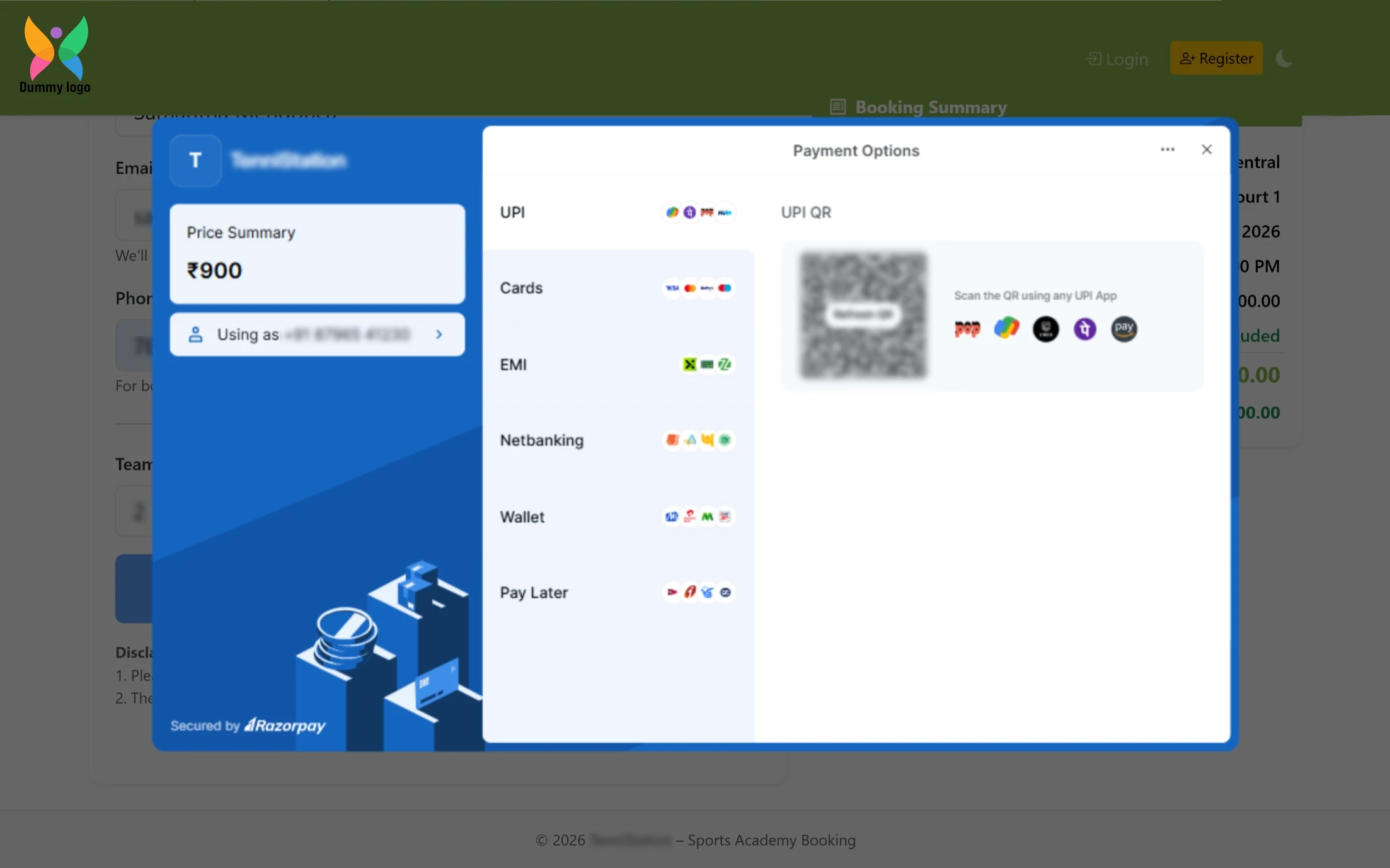
Payment Options
A flexible payment screen offering multiple options like UPI, cards, EMI, and QR code for a smooth checkout experience. Users can choose their preferred method and complete the booking quickly and securely.
Payment & Confirmation
A smooth checkout screen where users can choose from multiple payment options like UPI, cards, EMI, or QR code. Once completed, the booking is instantly confirmed, giving users a clear and reassuring end to the process.
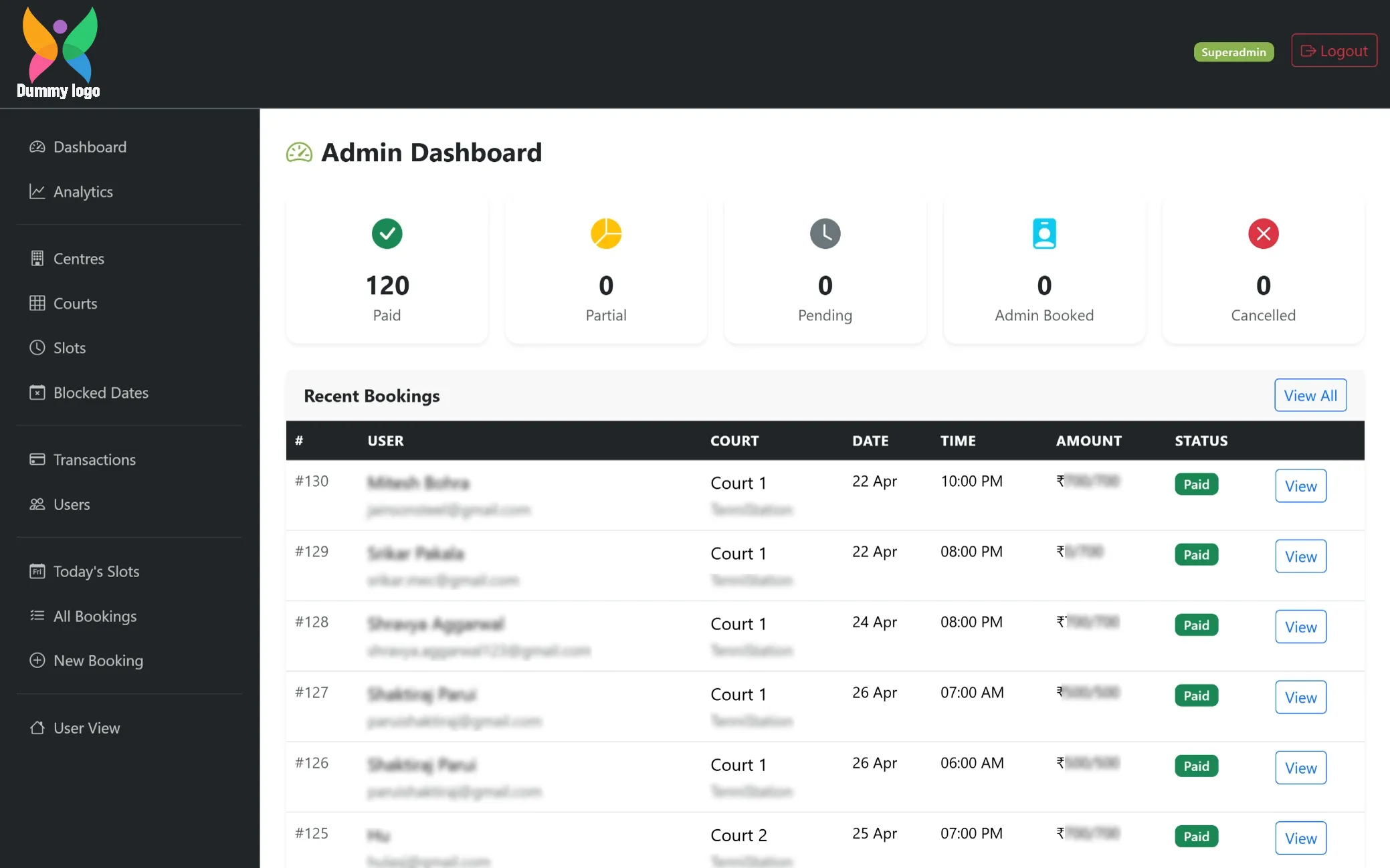
Admin Access Panel
The admin view highlights role-based access at the top, clearly indicating Admin and Super Admin controls. This ensures better visibility of permissions while managing bookings, users, and overall platform activities efficiently.
Booking Overview Dashboard
A centralized dashboard showing booking statuses like paid, pending, cancelled, and admin booked, giving a quick summary at a glance. Below, recent bookings are listed with user details, court, timing, and payment status, making it easy to track and manage daily activity efficiently.
Booking Details View
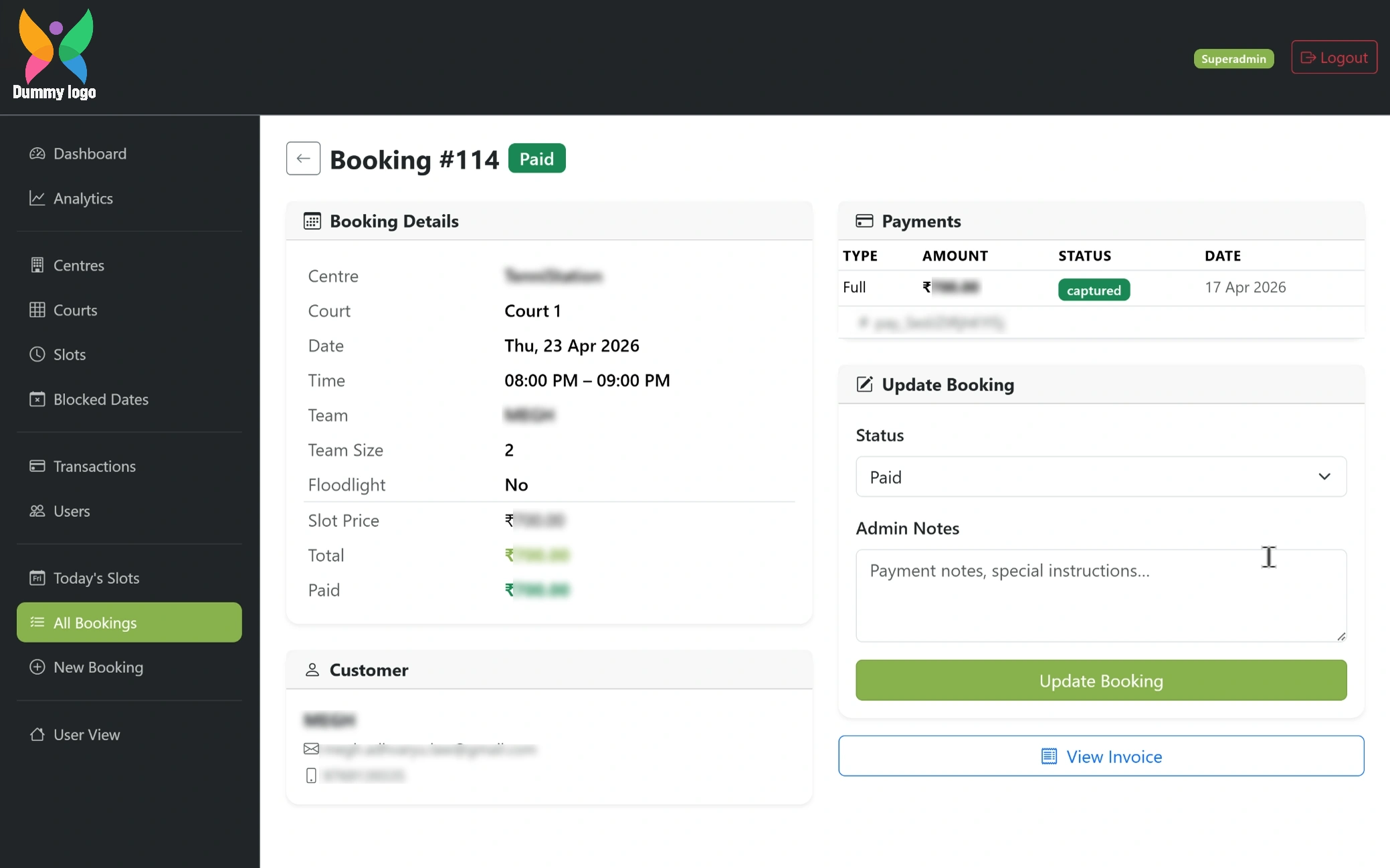
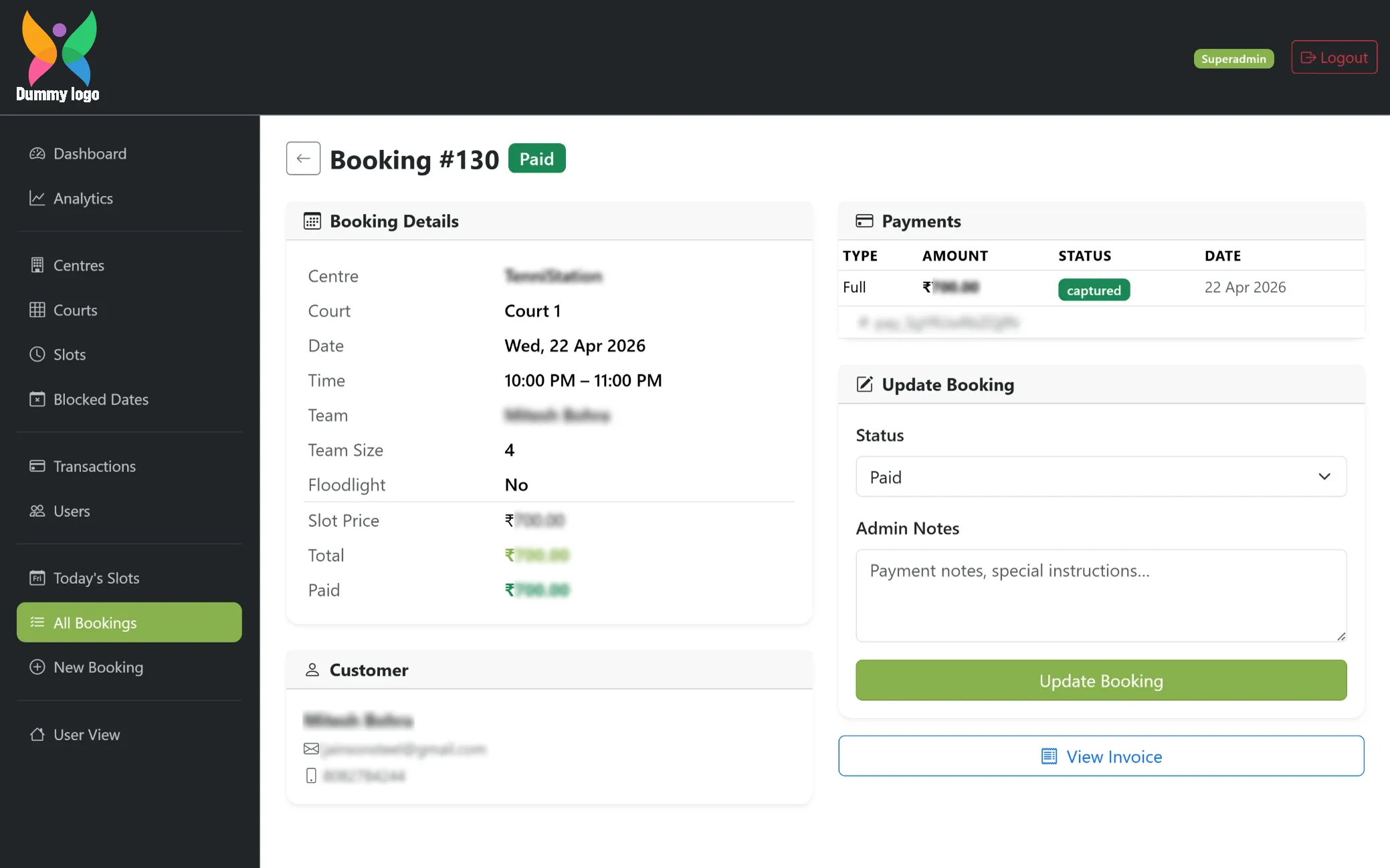
A complete view of an individual booking showing court details, date, time, pricing, and customer information in one place. It also includes payment records and options to update status or add notes, making booking management clear and efficient.
Revenue & Performance Dashboard
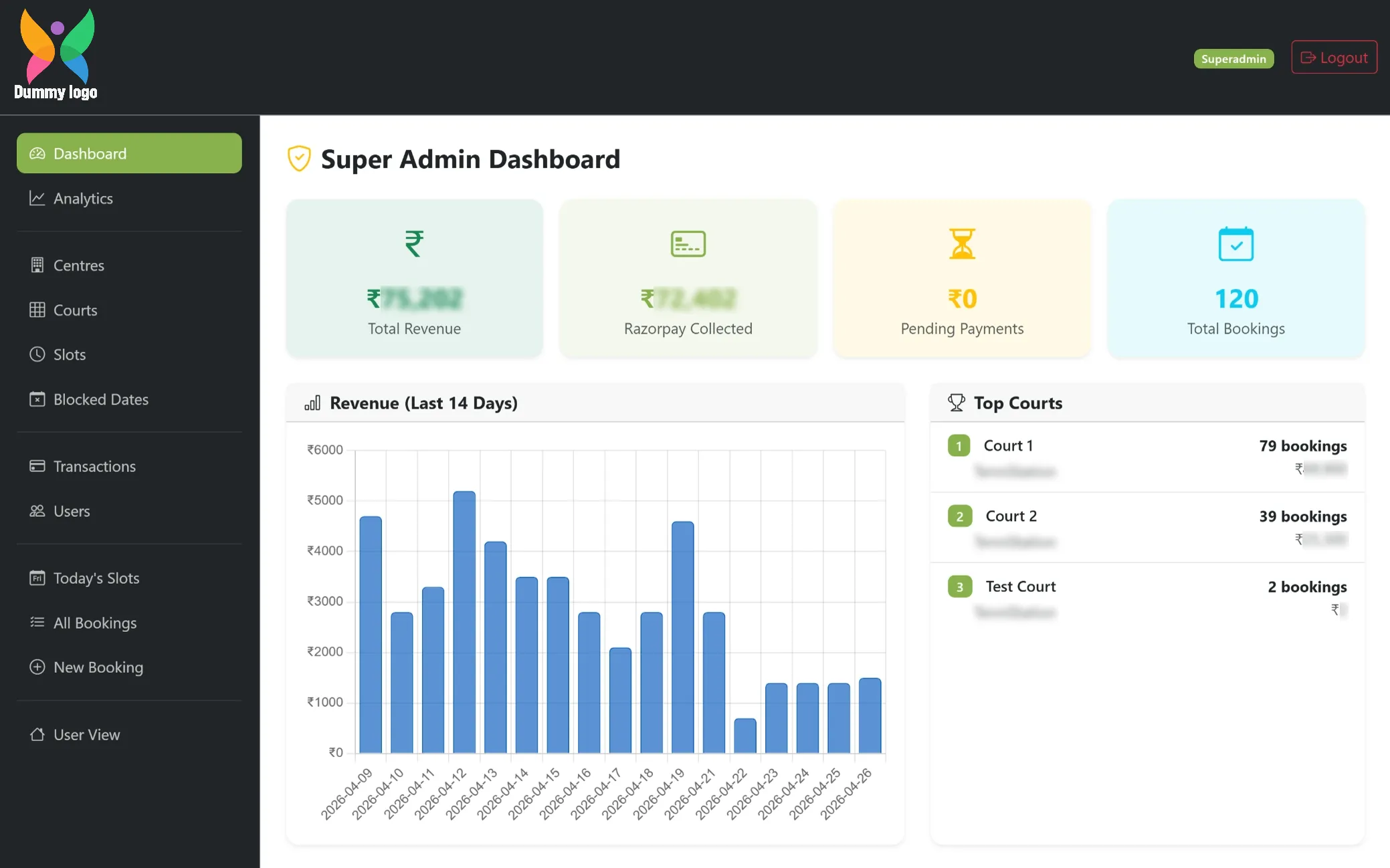
A comprehensive dashboard displaying total revenue, collected payments, pending amounts, and overall bookings in one view. It also includes a visual graph showcasing revenue trends over time, along with top performing courts, helping track performance and make informed business decisions quickly.
Booking Analytics
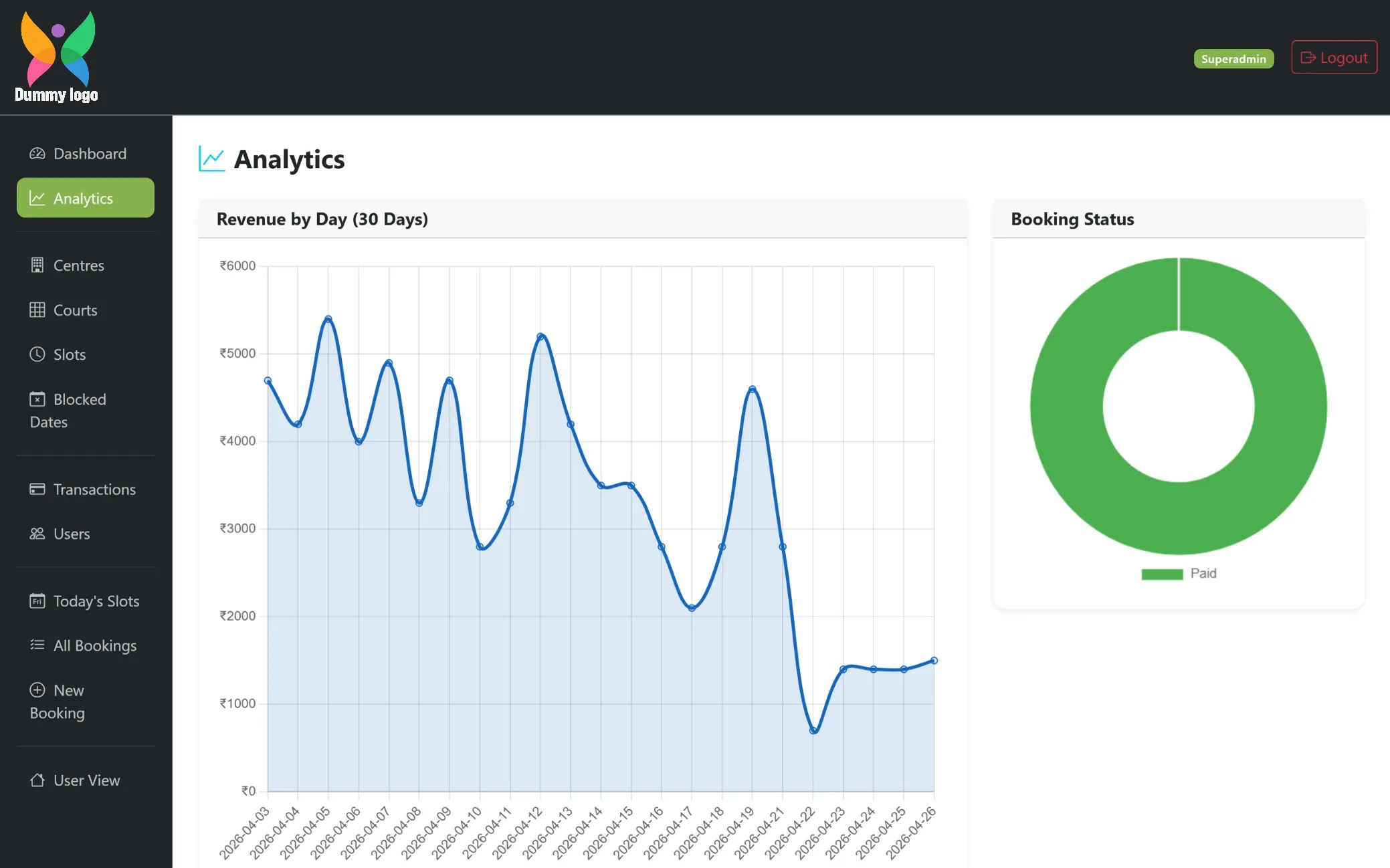
A visual analytics section featuring a line graph that tracks revenue over time, with price on one axis and timeline progression on the other. Alongside, a booking status panel highlights completed bookings in a clear, color coded format, giving a quick and easy understanding of overall performance.
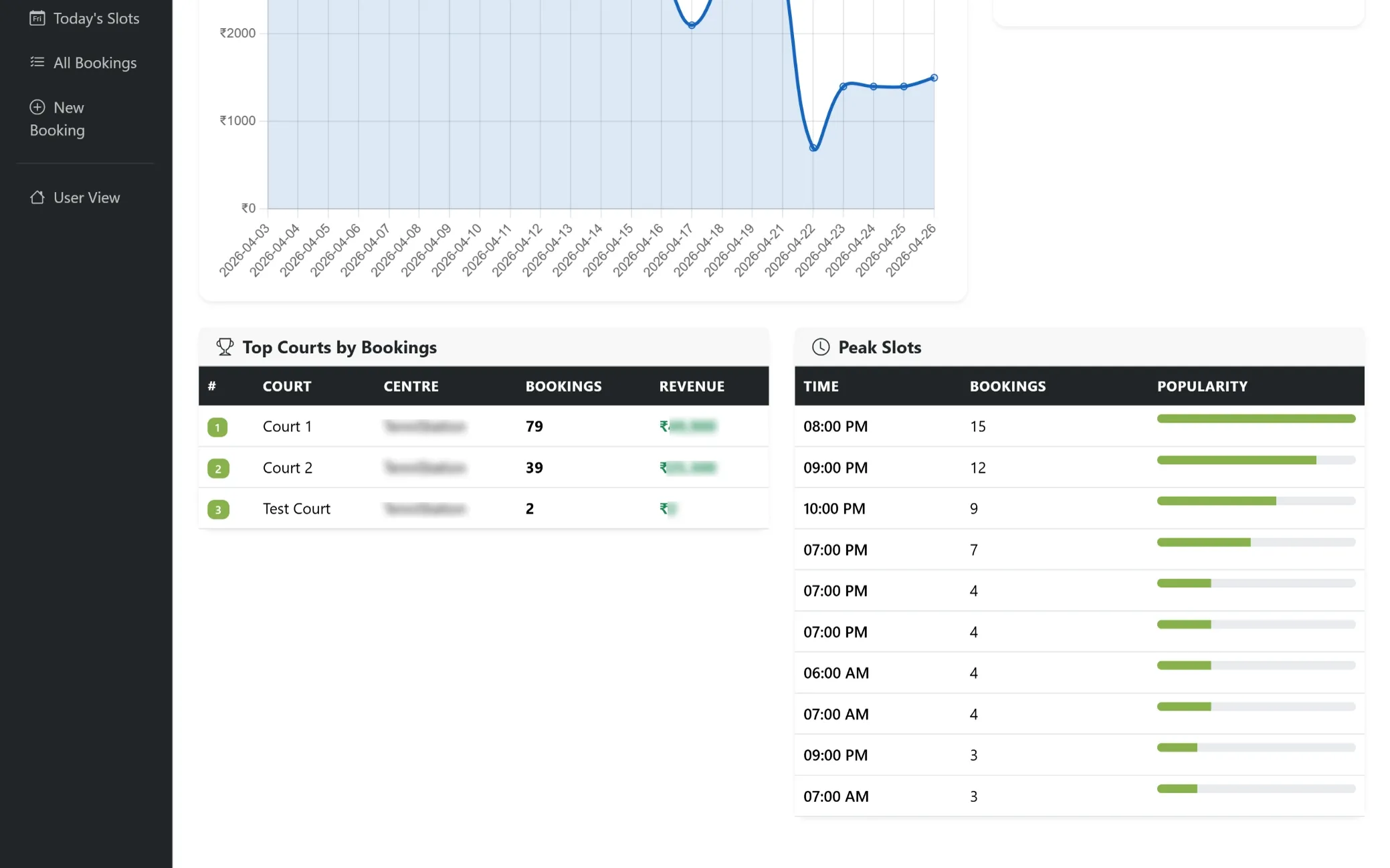
Court Performance Insights
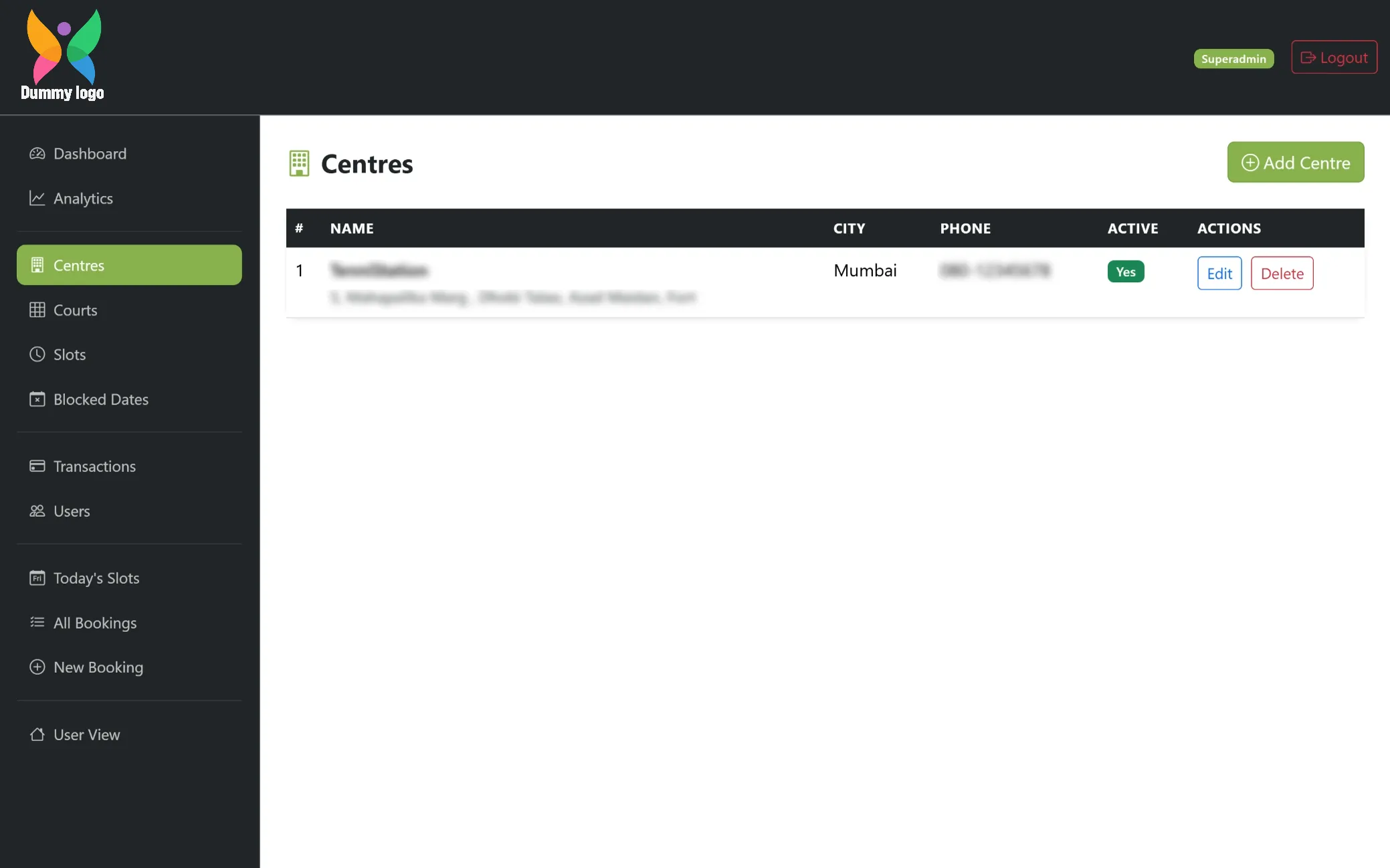
Centre Management
A structured view of all centres with details like name, location, and contact information. It also provides quick actions to edit or remove centres, making management simple and well controlled.
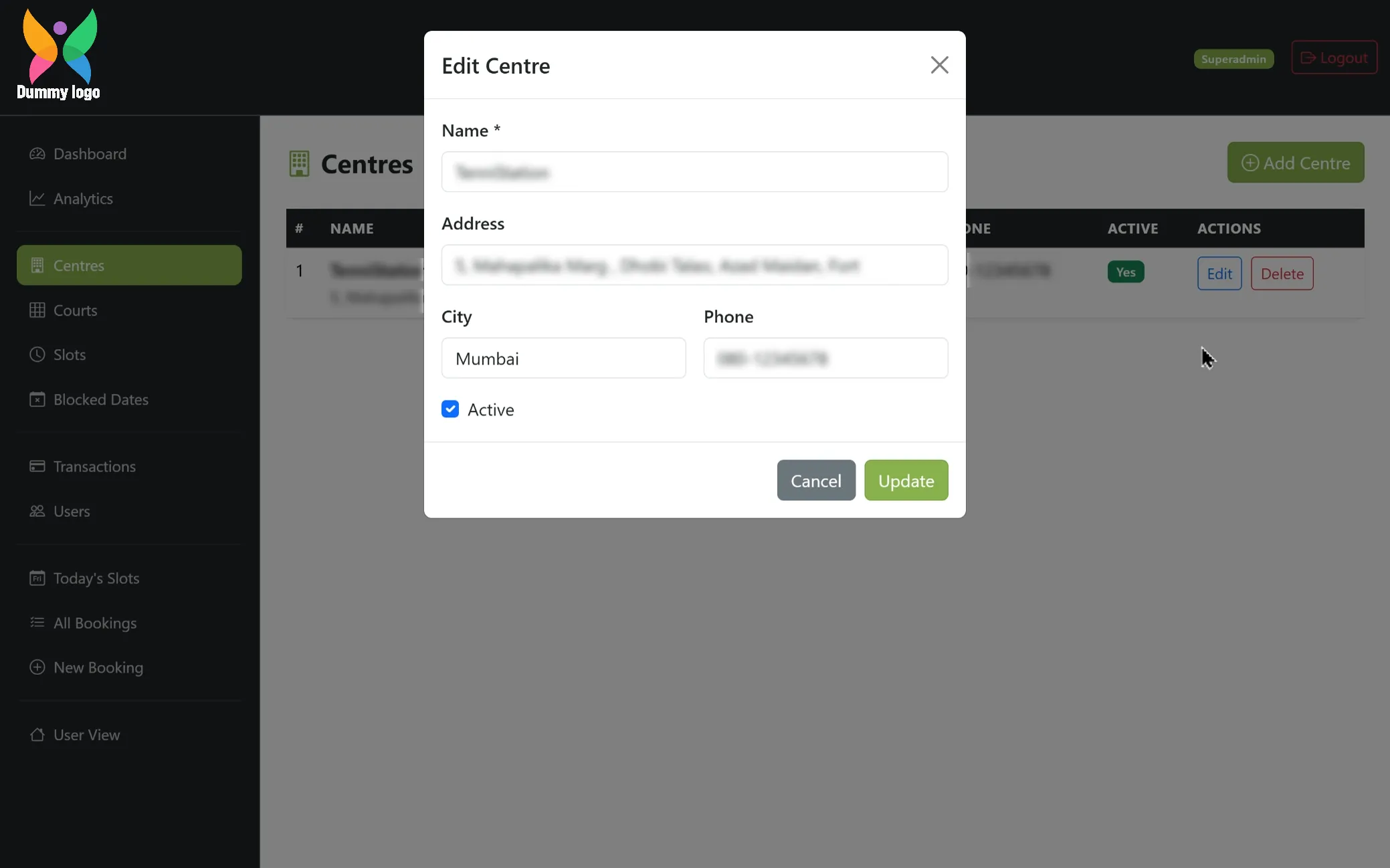
Add & Edit Centre
A simple form that appears as a popup to add or update centre details like name, address, city, and contact information. Clear action buttons make it easy to save changes or cancel, keeping the process quick and straightforward.
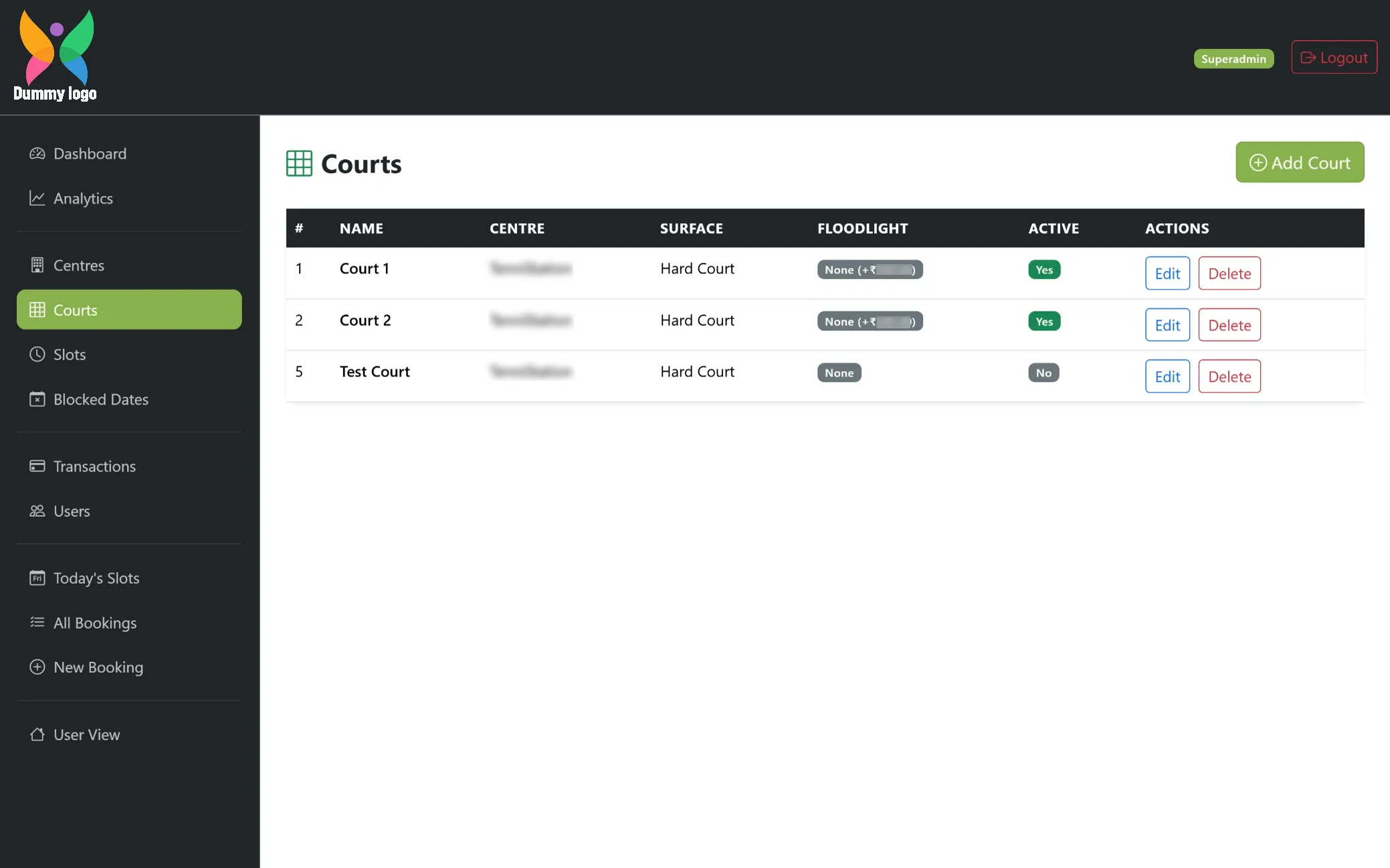
Court Management
A clear list of all courts with details like centre, surface type, floodlight options, and active status. Edit and delete actions are available for each entry, making it easy to manage and update court information.
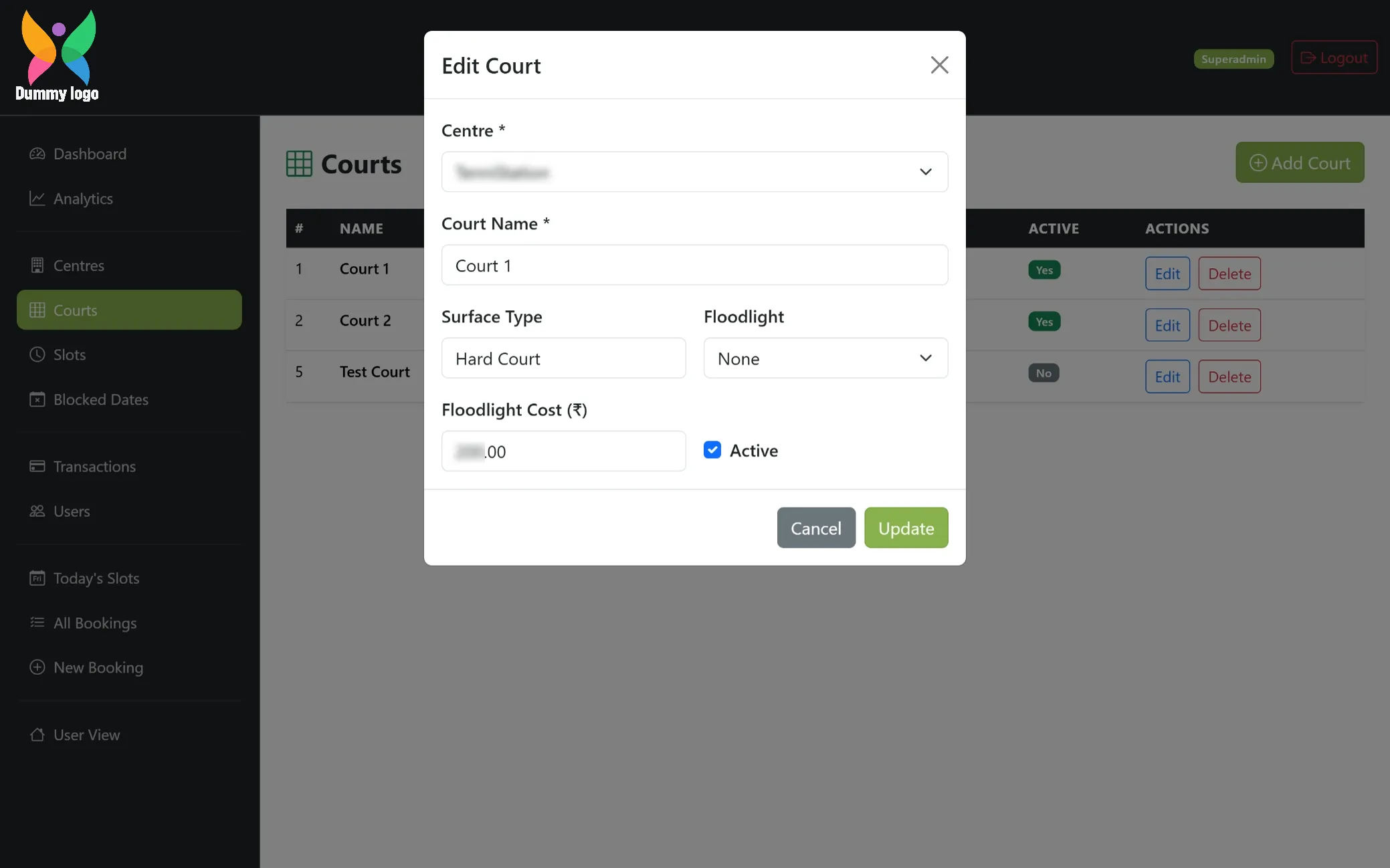
Edit Court Details
A focused form to update court information, including centre, court name, surface type, and floodlight settings with pricing. It allows quick edits while keeping all details clear and easy to manage.
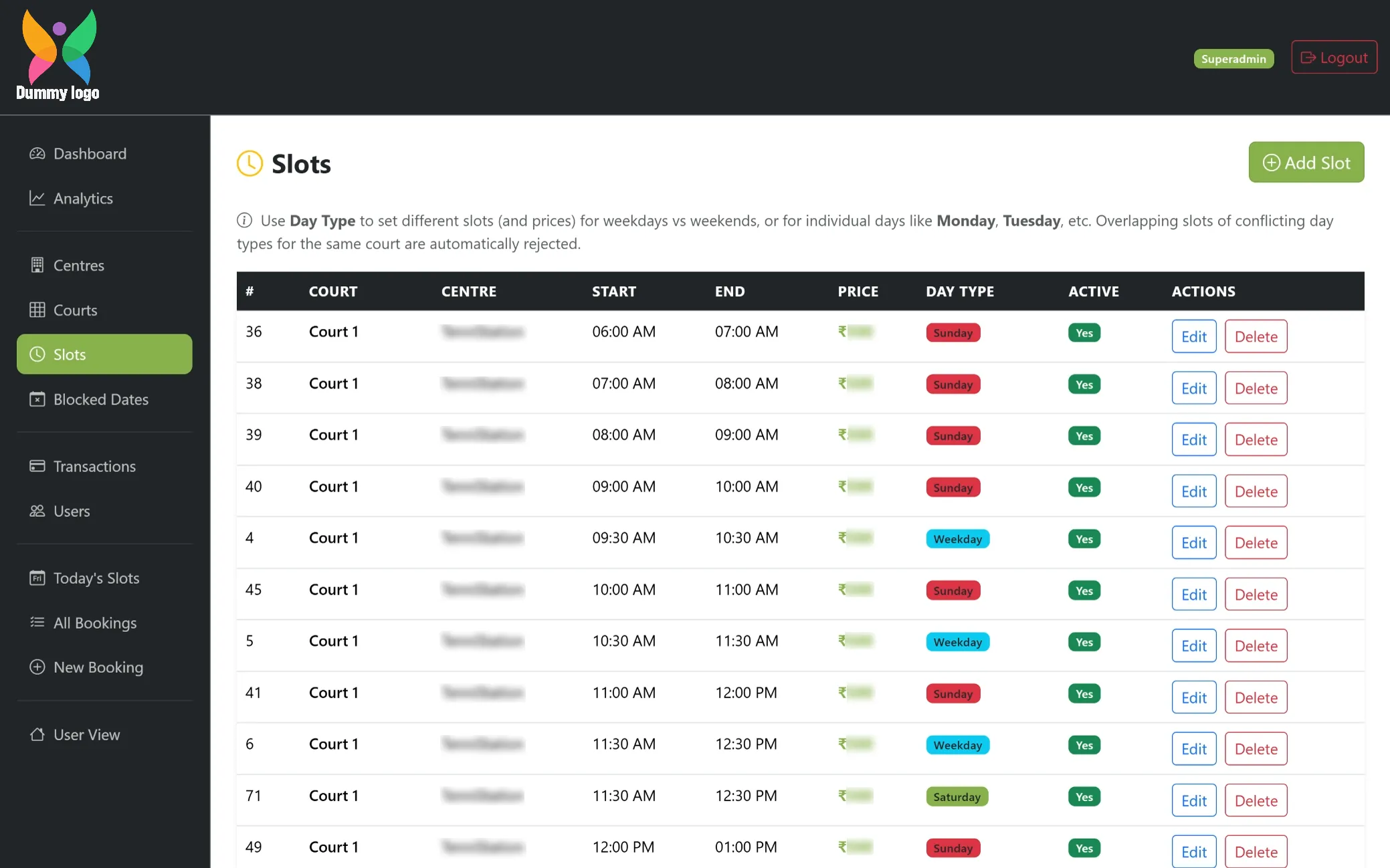
Slot Management
A detailed view of all time slots with pricing, day types, and availability for each court. It allows easy editing and deletion of slots while ensuring no overlapping conflicts, keeping scheduling accurate and well organized.
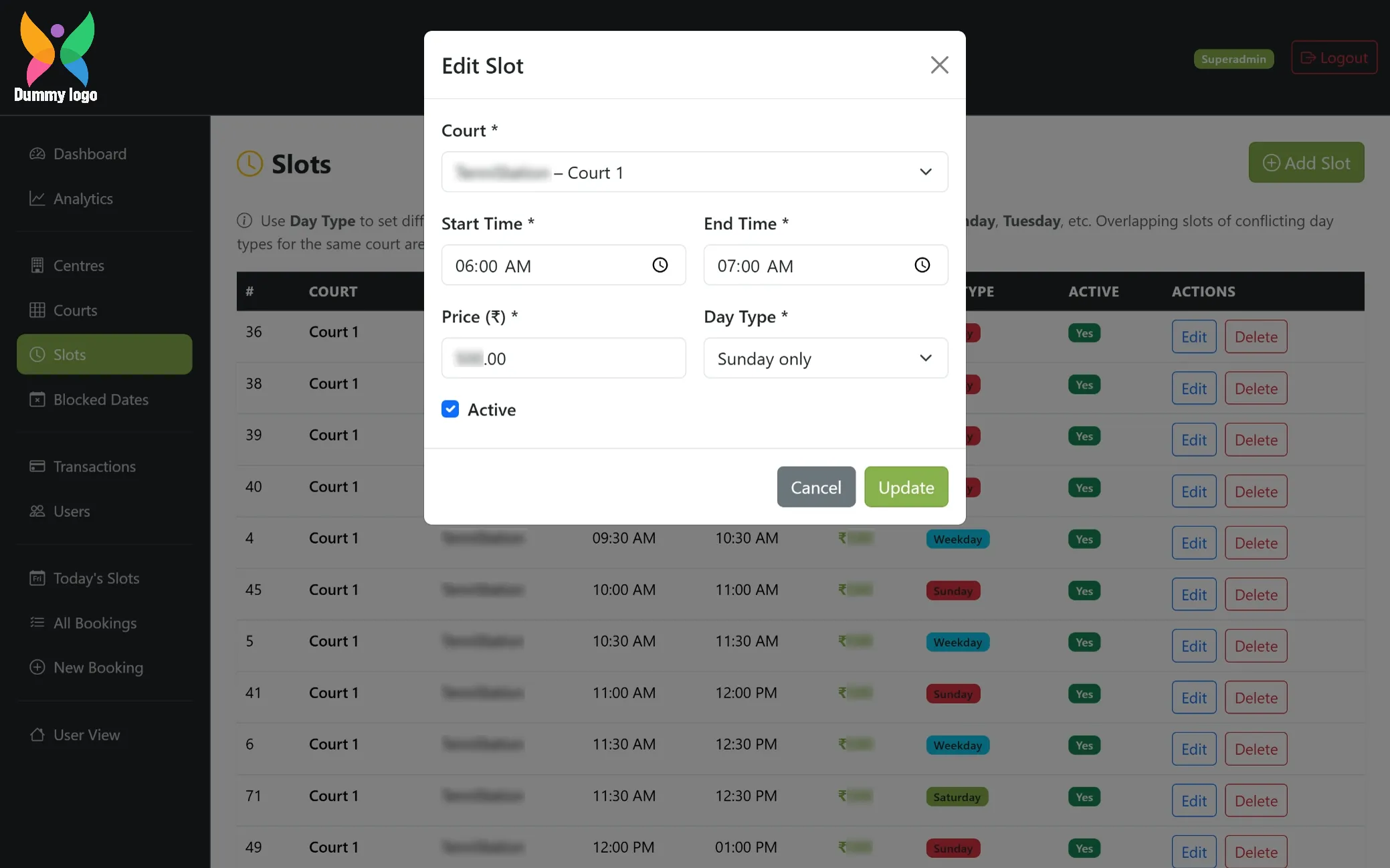
Edit Slot Details
A simple popup form to update slot timings, pricing, and day type for a selected court. Clear fields and action buttons make it easy to adjust schedules while keeping bookings accurate and well managed.
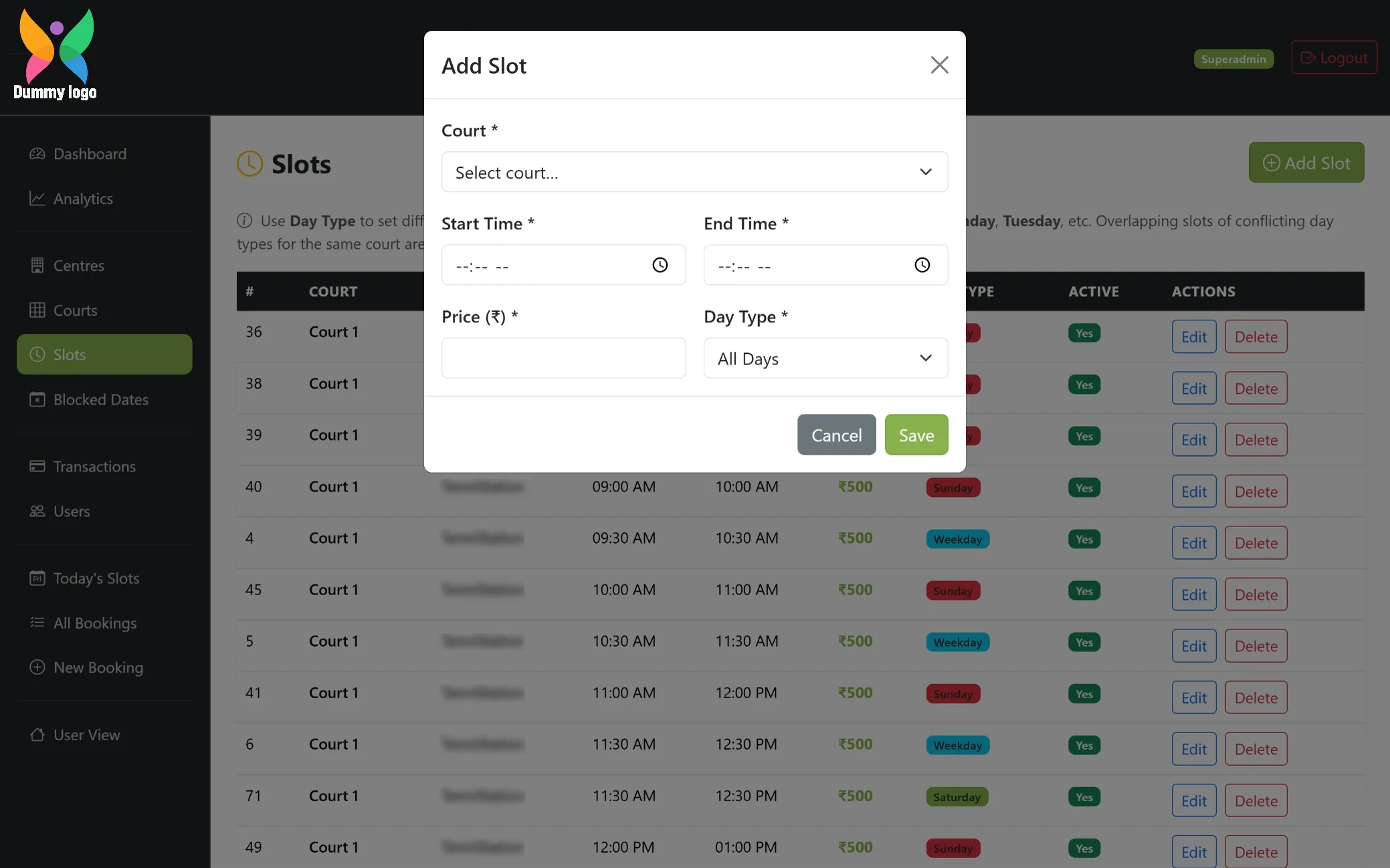
Add New Slot
A quick popup form to create new time slots by selecting the court, setting timings, pricing, and day type. Simple inputs and clear actions make it easy to add slots and manage availability smoothly.
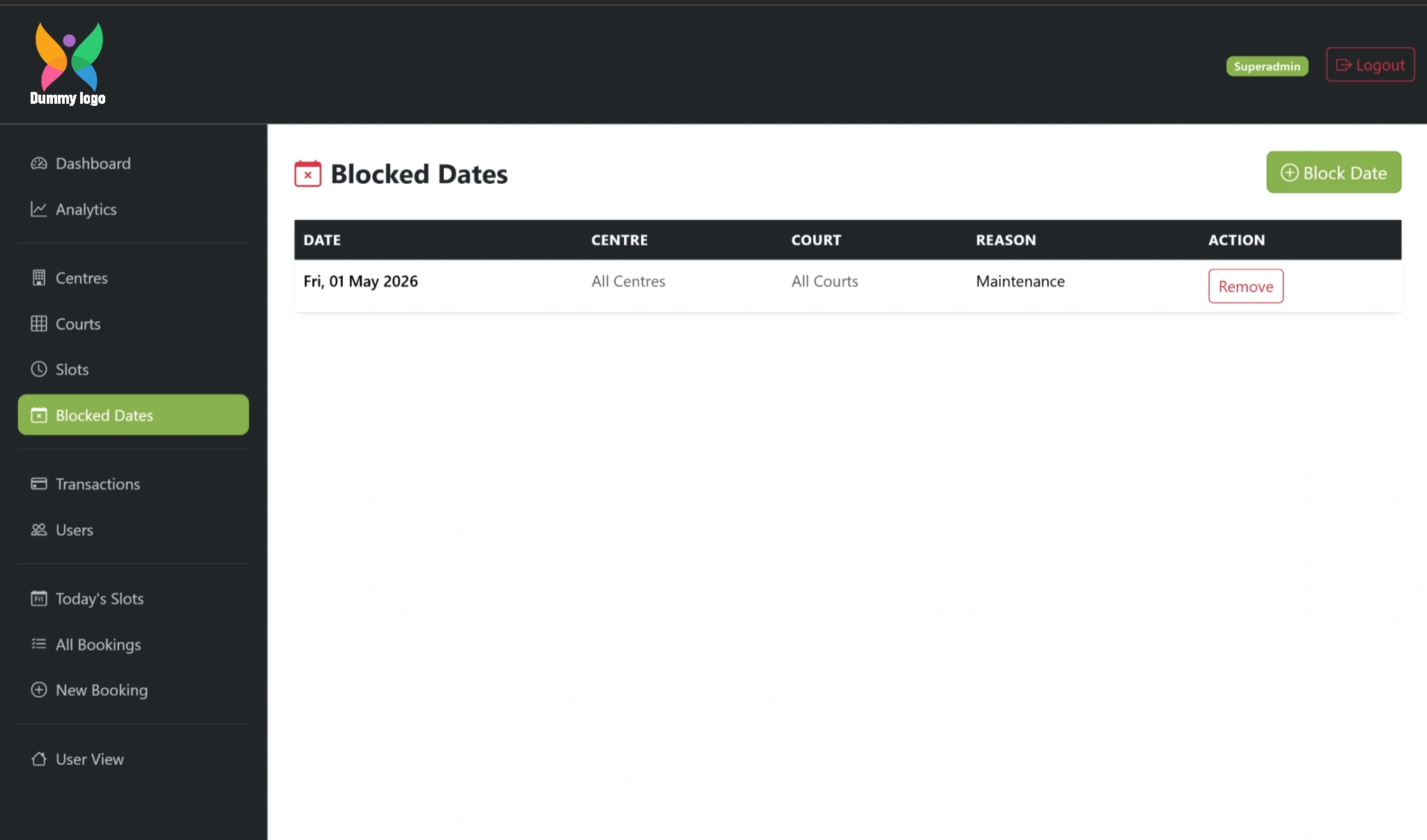
Blocked Dates List
A clear view of all blocked dates with details like centre, court, and reason. It helps manage restrictions easily with quick actions to update or remove entries when needed.
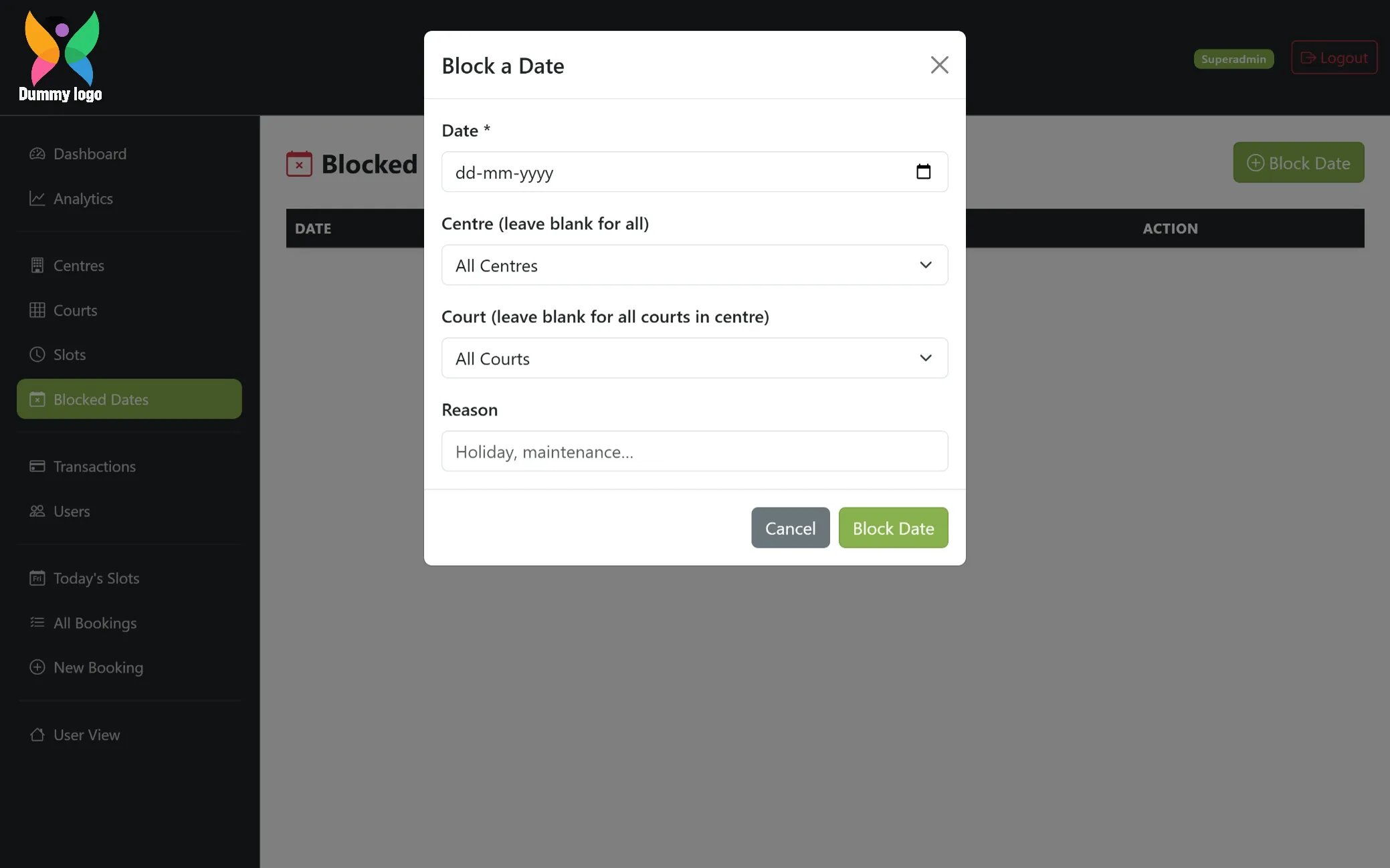
Block Dates
A simple form to block specific dates for selected centres or courts when needed. It allows adding a reason and applying restrictions easily, helping manage availability during maintenance, events, or closures.
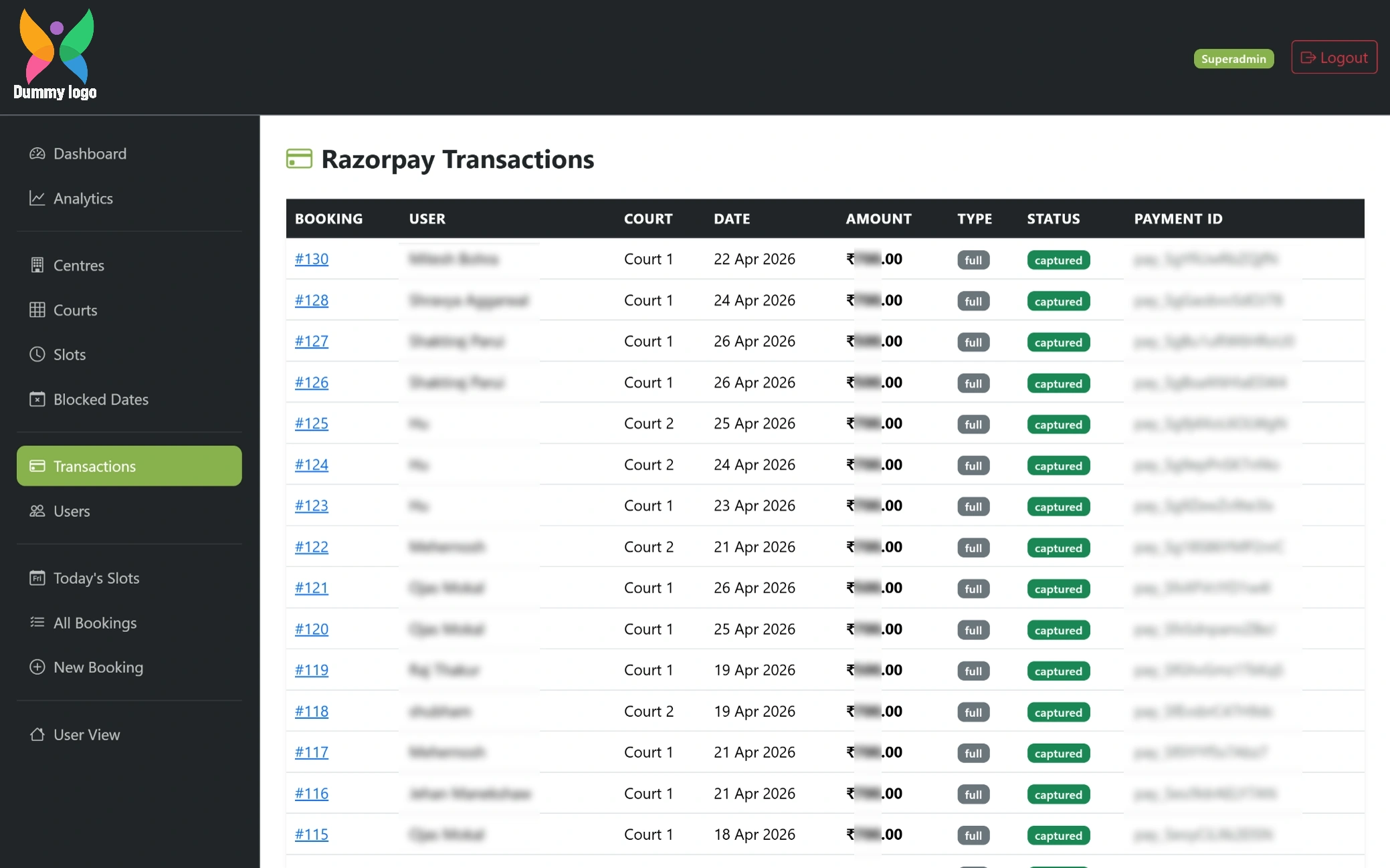
Payment Transactions
A detailed list of all payment transactions with booking, user, court, date, amount, and payment status. It provides clear visibility of collected payments along with transaction IDs for easy tracking and verification.
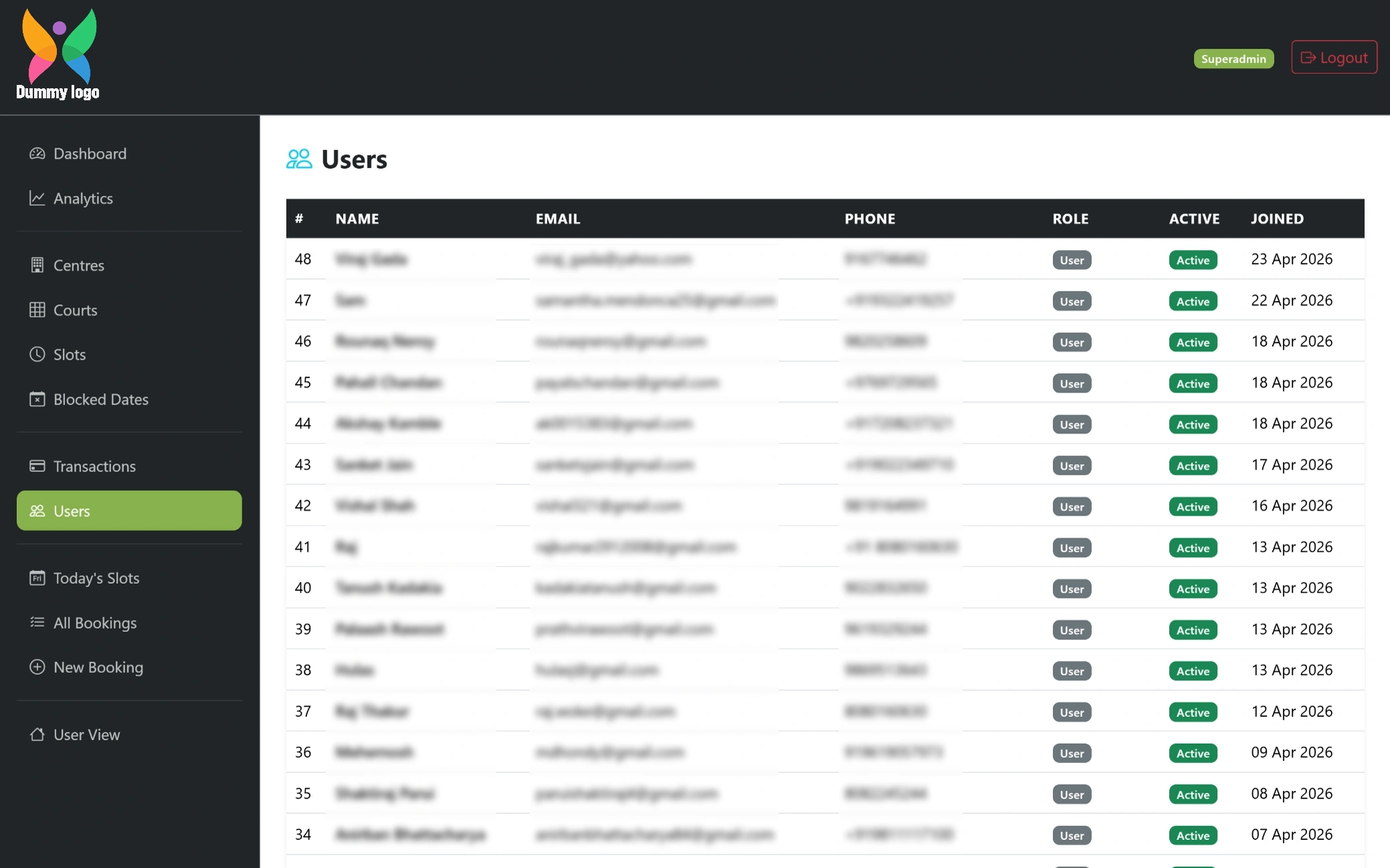
User Management
A structured list of all users with details like name, contact information, role, and account status. It helps manage users efficiently while keeping track of activity and access within the platform.
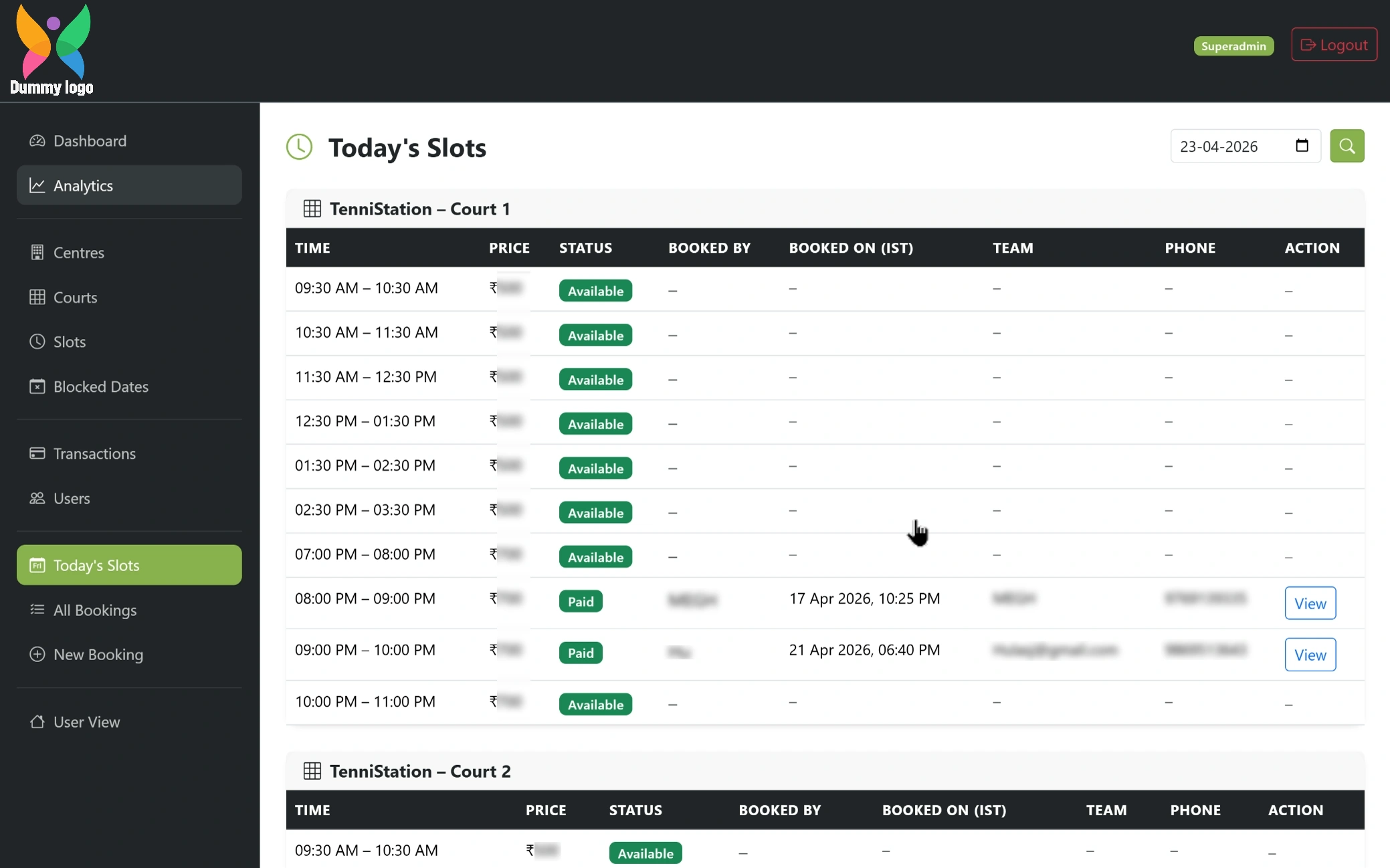
Daily Slot Overview
A detailed view of all time slots for a selected date, showing availability, bookings, pricing, and user details. With a calendar option on top, it allows easy navigation across dates to track and manage court schedules efficiently.
Slot Booking Details
A complete view of a selected booking showing court, timing, team details, and pricing in one place. It also includes customer information, payment records, and options to update status or add notes for better booking management.
Create Booking
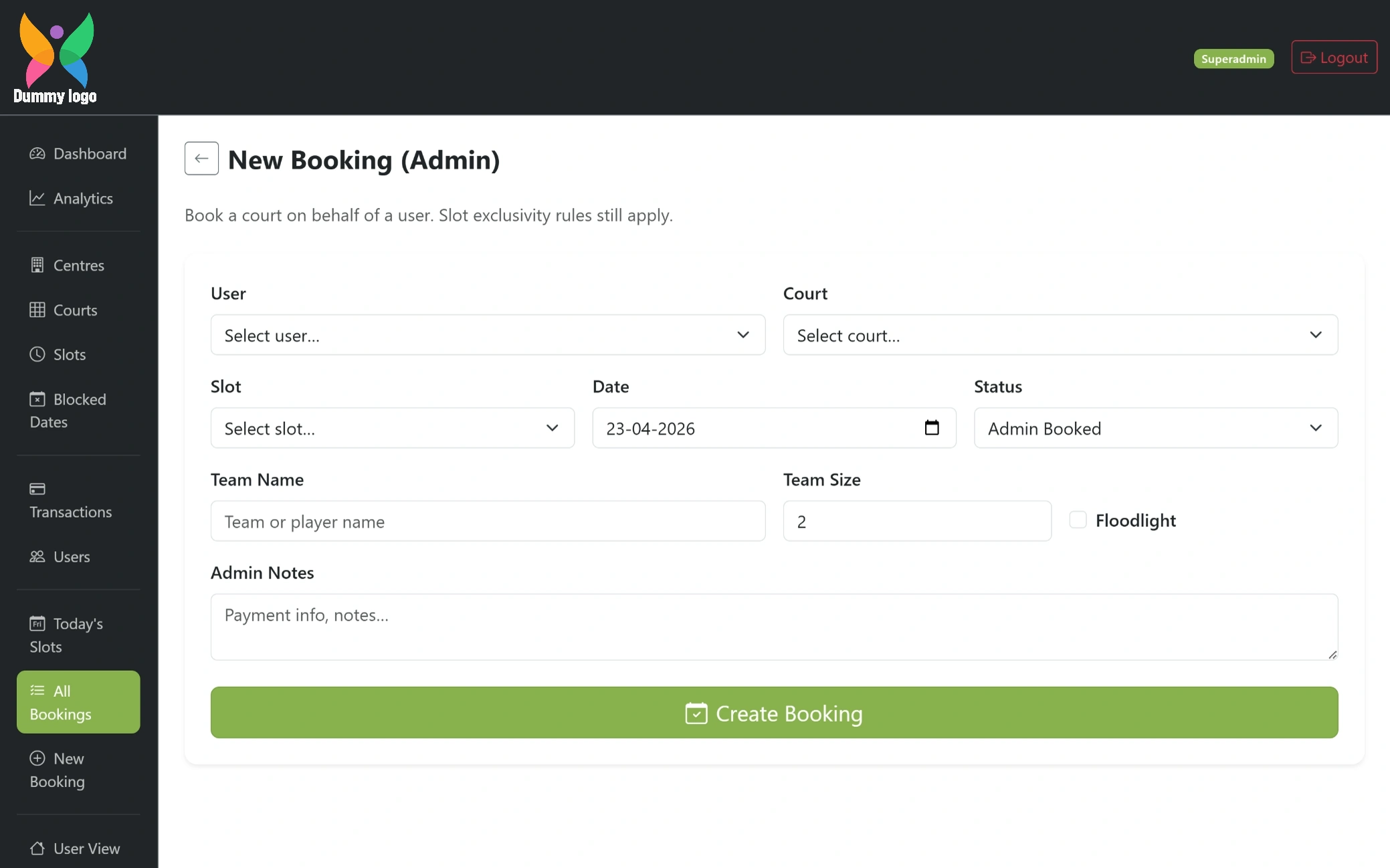
A dedicated form to create bookings on behalf of a user by selecting the court, slot, and date. It allows adding team details, setting status, and including notes, making manual booking management simple and controlled.
Purpose
Built to simplify court booking and scheduling, this web application reduces manual coordination and avoids double bookings. It enables users to check availability, reserve slots instantly, and manage bookings with ease, while improving overall efficiency and user experience.
Modules
Organized into key sections, the platform includes Home for quick access, Centre Selection for choosing locations, Court & Slot Management for booking, Payments for secure transactions, and Admin Panel for complete control and monitoring. Together, these modules create a smooth and connected booking workflow.
Features
Equipped with practical tools, it allows users to book courts in real time, view availability, and manage their bookings effortlessly. Multiple payment options ensure flexibility, while admin controls, analytics, and reports help track performance and maintain efficient operations.


